01Getting started
What NyxoPlay is, what you need, and your first five minutes.
What NyxoPlay is (and isn't)
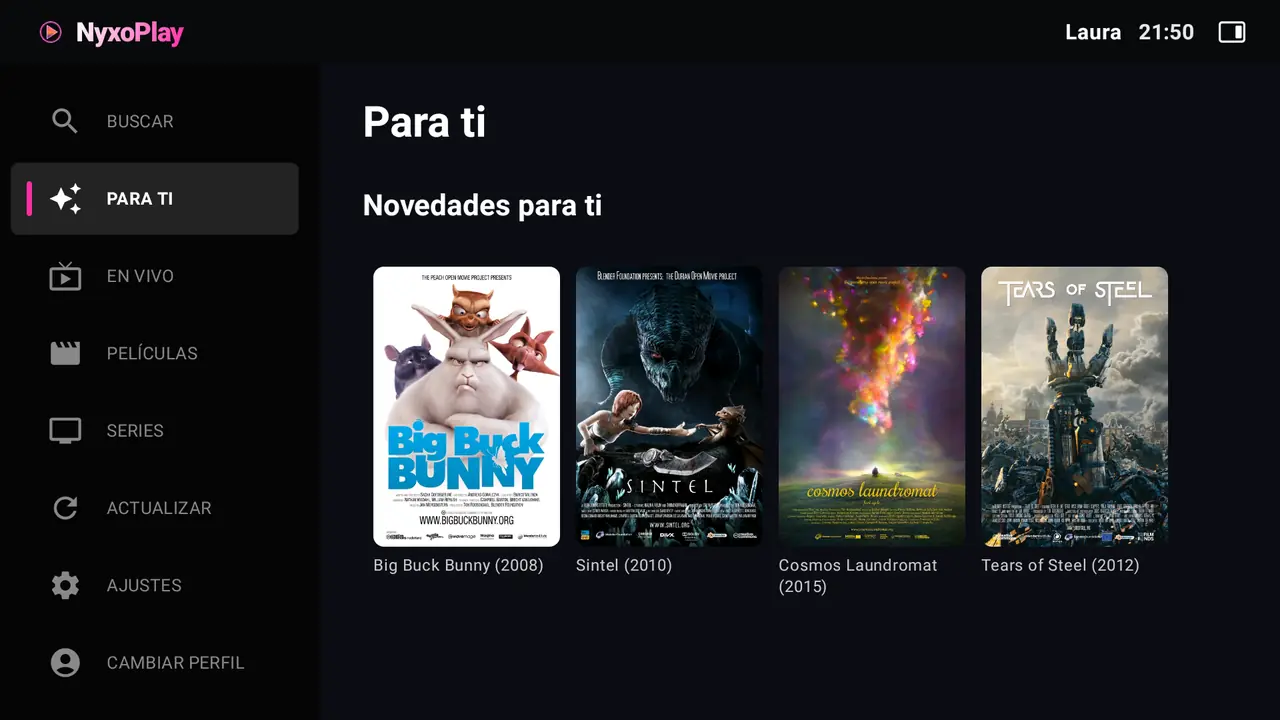
NyxoPlay is a player for IPTV services. It shows the live channels, movies and series of the provider you already subscribe to, with a cinematic interface designed for the TV remote and for touch screens.
NyxoPlay does not include any channels or content. You need an account with an IPTV provider. NyxoPlay doesn't sell, host or recommend any provider, and you are responsible for the content you access.
What you need
- An Android TV or Google TV device, an Android phone or an Android tablet.
- The details your provider gave you: either a link (an M3U list or an Xtream link), or a server address, username and password.
- An internet connection. For HD and 4K, a stable Wi-Fi or Ethernet connection makes a real difference — you can measure it from inside the app (see Troubleshooting).
Install
- Open Google Play on your TV, phone or tablet and search for NyxoPlay.
On Android TV you can also install it from Google Play on the web and choose your TV as the destination.
- Install and open the app.
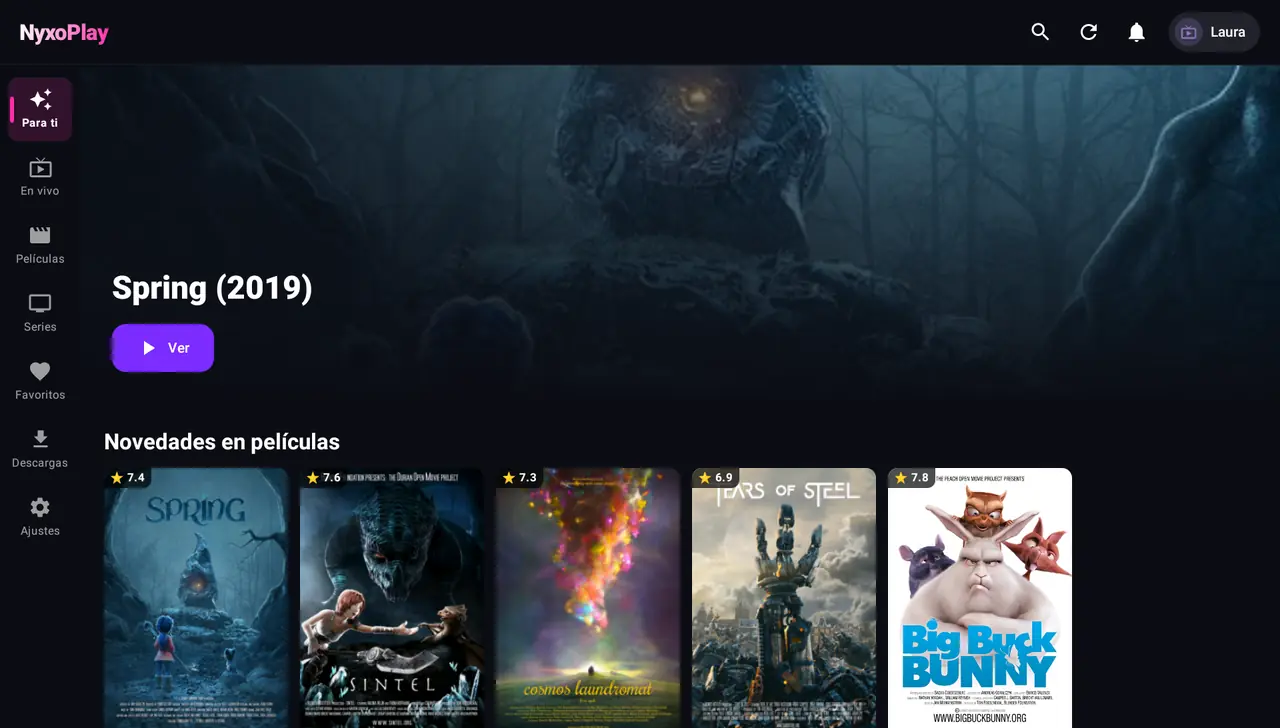
The same download works on every Android device; NyxoPlay adapts its layout to the screen automatically.
- Follow the short tutorial.
A few pages explain profiles, live TV, movies and series, favorites, search and settings. You can skip it and watch it again later from SettingsView tutorial.
Your first five minutes
1 · Add your provider
Paste the link your provider sent you. NyxoPlay detects the type and checks the connection. How →
2 · Let it load
The first time, your whole catalogue and the programme guide are downloaded. Large lists can take a minute.
3 · Learn three buttons
On TV, everything is ◀ ▶ ▲ ▼, OK and Back. Hold OK to add a favorite. More →
4 · Turn on sync (optional)
Connect your own Google account so favorites and progress follow you to every device. How →
02Your provider & profiles
A profile is one provider connection plus one person's favorites, progress and preferences.
Add your provider (guided mode)
- Choose Add profile.
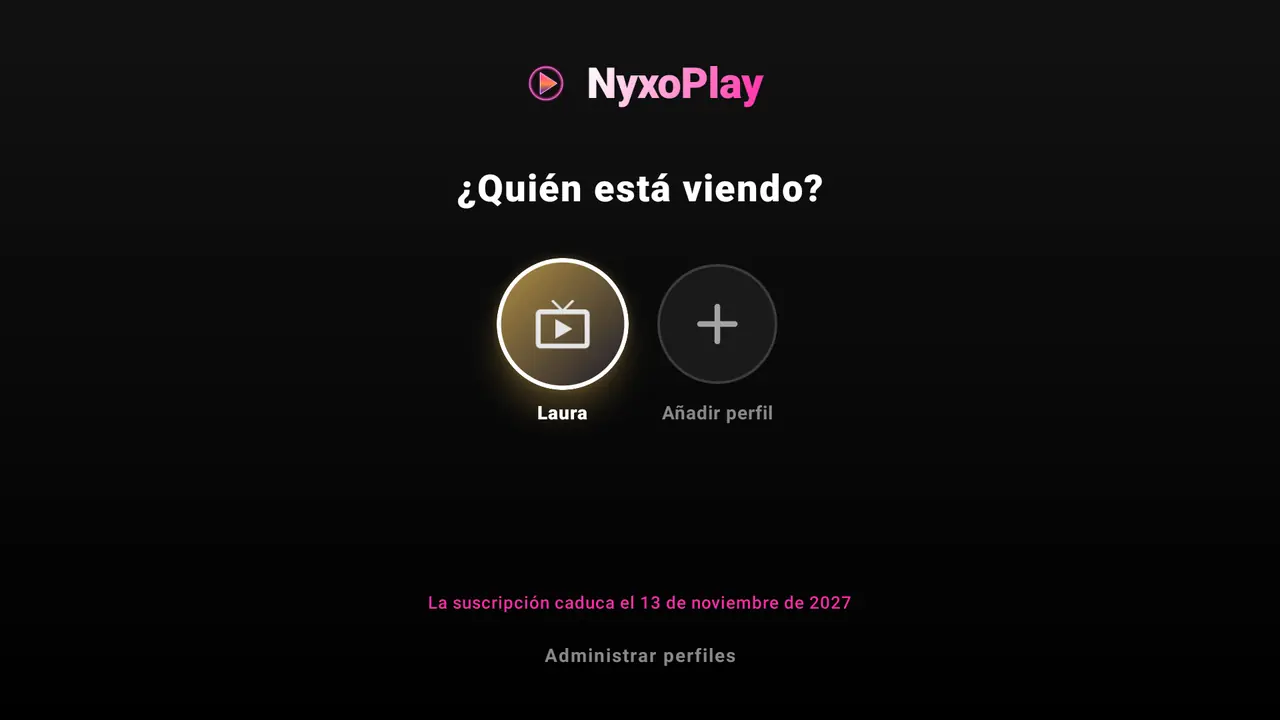
On first launch you go there directly. Later, it's on the Who's watching? screen.
- Paste your Provider link.
Paste the link or list your provider gave you. NyxoPlay tells you what it found: Xtream server detected, M3U list detected, or Xtream server: add username and password. If your provider gave you separate credentials, tick I have a username and password.
- Wait for Connected!
The app checks the connection before going on. If it says it couldn't connect, check the link for typos and try again.
- Create your profile.
Give it a name, pick a colour and choose an avatar. Then the catalogue starts loading.
Typing on a TV is slow — use your phone.
On the TV, choose Fill in from your phone and scan the QR code with your phone's camera (both must be on the same Wi-Fi). A page opens in the phone's browser — no app needed — where you paste the link or type the server, user and password. The TV shows what was sent and only uses it after you confirm with Use them. Nothing leaves your home network.
If NyxoPlay is installed on the phone, the page offers Open in NyxoPlay: send a profile you already have on the phone in one tap, and let the TV remember the phone so next time no code is needed.
Advanced mode
If the link isn't recognised, choose Having trouble? Enter the details manually (or switch to Advanced mode). There you choose the LIST TYPE:
| List type | What to enter | Good to know |
|---|---|---|
| IPTV SERVER (XTREAM) | Server URL (e.g. http://example.com:8080), username and password | The richest option: categories, guide, catch-up, series with seasons, subscription expiry. |
| M3U LIST | M3U list URL (e.g. http://example.com/playlist.m3u) | Works with any standard playlist. Guide and extras depend on what the list includes. |
Managing profiles
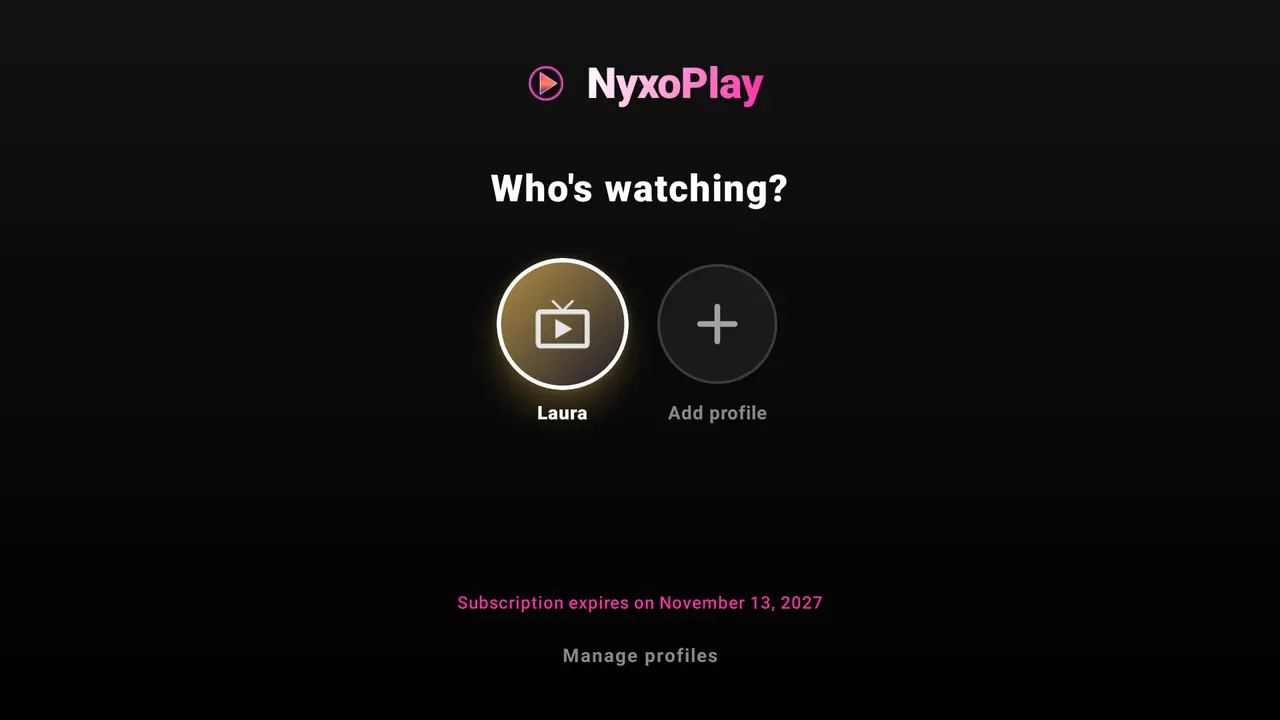
Each person in the house can have their own profile — with its own favorites, history, recommendations and settings — and profiles can use the same or different providers. On the Who's watching? screen, choose Manage profiles to:
- Edit a profile's name, colour, avatar or provider details.
- Clone a profile: create another person's profile on the same provider without typing anything. The provider stays shared and isn't editable from the clone.
- Lock a profile with a 4-digit PIN, so nobody else can open it. Remove lock takes it off.
- Delete a profile and everything stored for it on this device.
Under each profile you'll see when your provider subscription expires (or Subscription never expires), so a lapsed subscription is never a mystery.
To change profile later: on TV choose Switch profile in the side menu; on phone and tablet, open Profile / Settings.
03Finding your way around
NyxoPlay has three layouts — TV, phone and tablet — and picks the right one for your device.
On Android TV
Everything on TV is done with the D-pad. The diagram shows the buttons NyxoPlay uses:
- 1D-pad — move around. ▶ goes one level deeper, ◀ one level back. In the player, ◀ ▶ seek and ▲ ▼ open the channel list.
- 2OK — open or play. Hold it on a channel, movie or series to add or remove a favorite.
- 3Back — close or go back. From the side menu, press it twice to exit the app.
- 4Play/Pause — in the player it plays and pauses; everywhere else it works just like OK.
- 5Menu — on a card in For you, hide that suggestion.
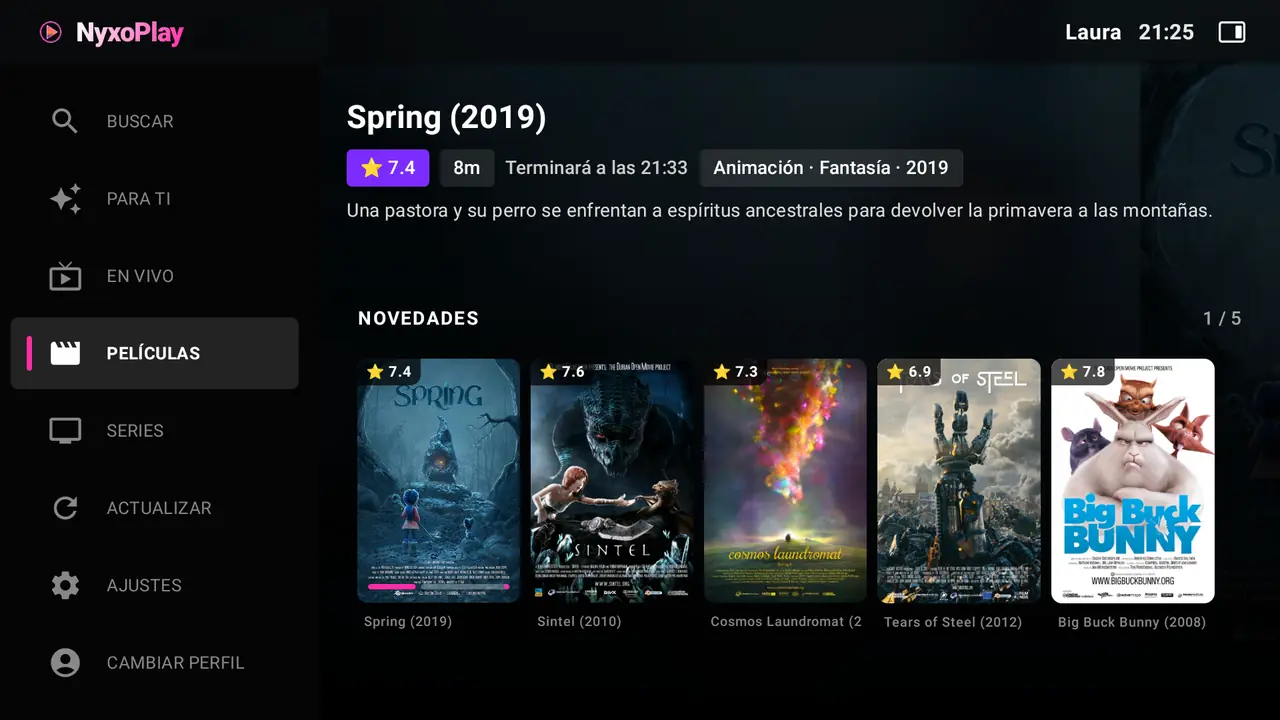
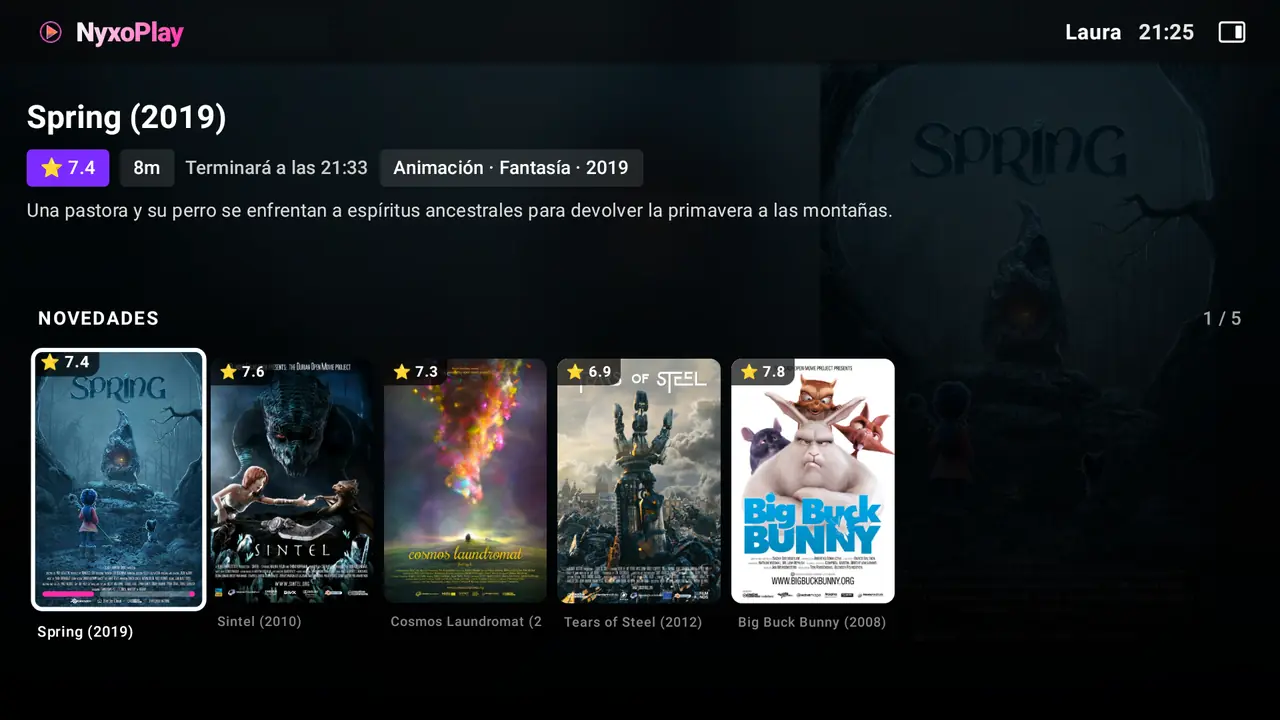
Three levels: menu, categories, content
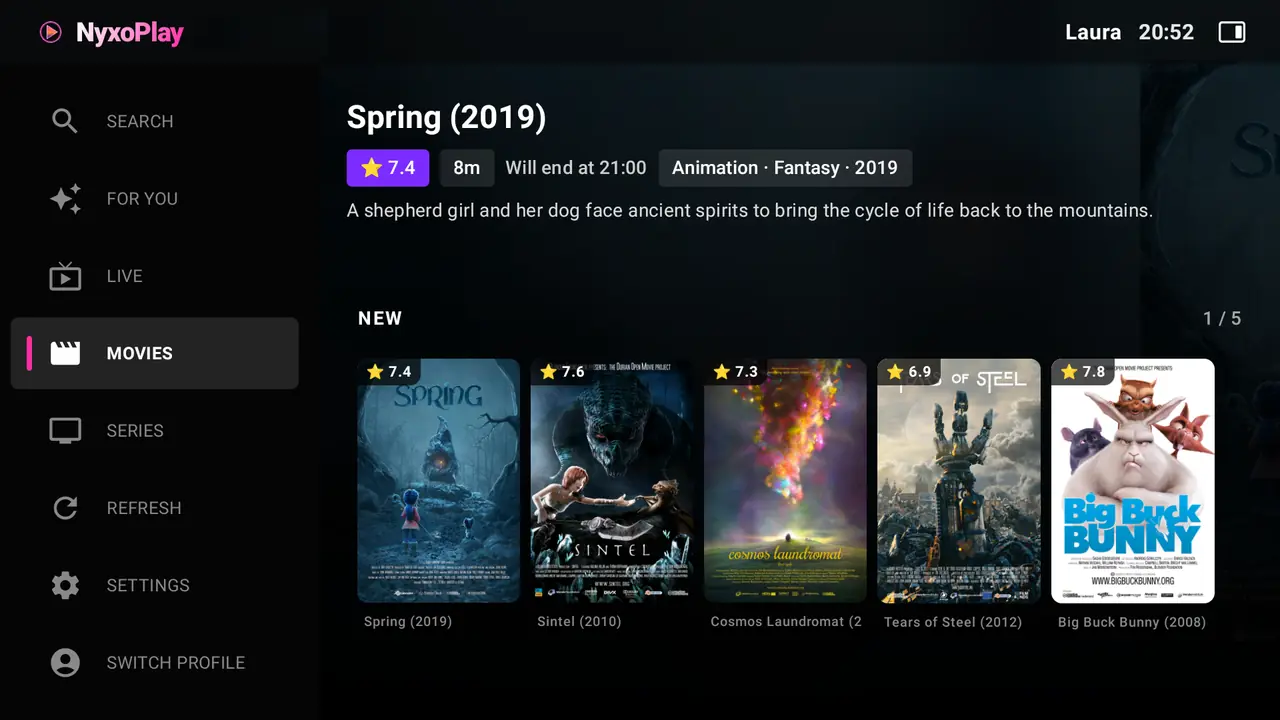
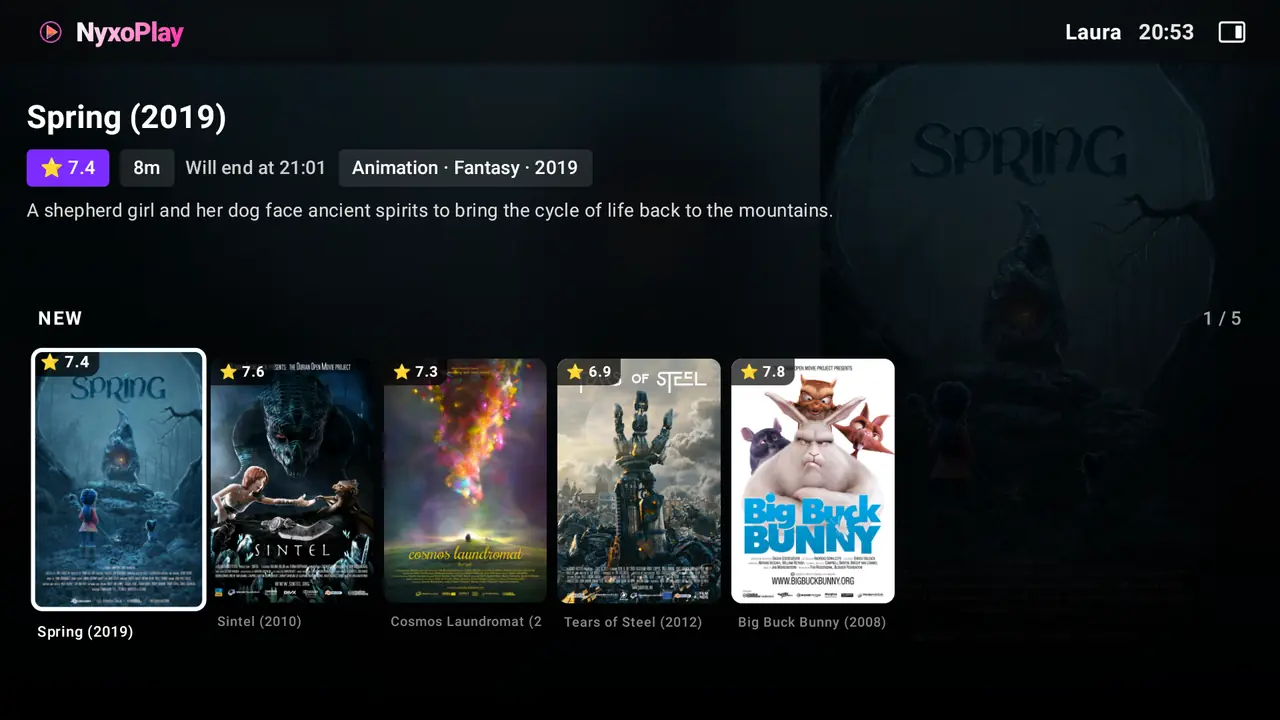
The TV screen is organised in three levels, from left to right. You go deeper with ▶ (or OK) and come back with ◀ or Back:
- The side menu previews what it points at. Rest on Movies for a moment and the right side already shows movies — you can see what's in a section before entering it.
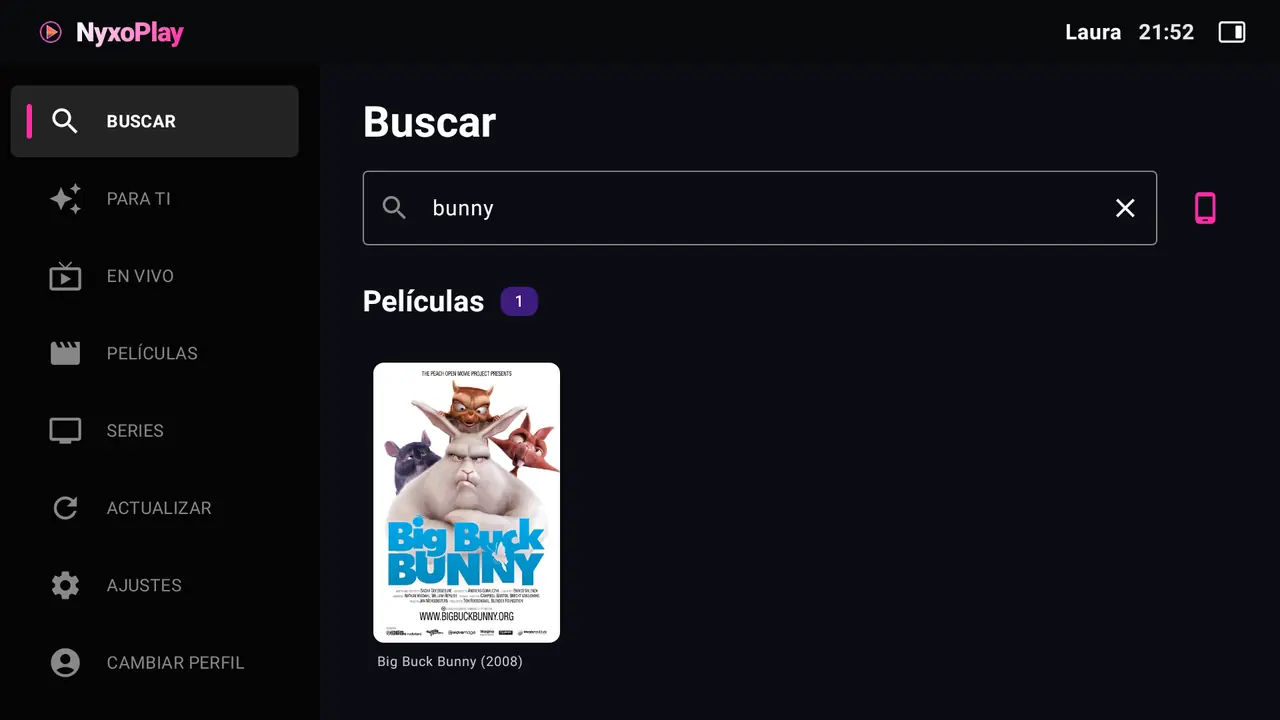
- Side menu entries: Search, For you, Live, Movies, Series, Settings, plus actions: Refresh (reload your provider's catalogue), Switch profile and, without a subscription, Buy. You can hide or reorder entries in Content preferences.
- Notifications: press ◀ while on the side menu to open the notification panel (wish-list finds, new episodes, catalogue and guide updates).
On a phone
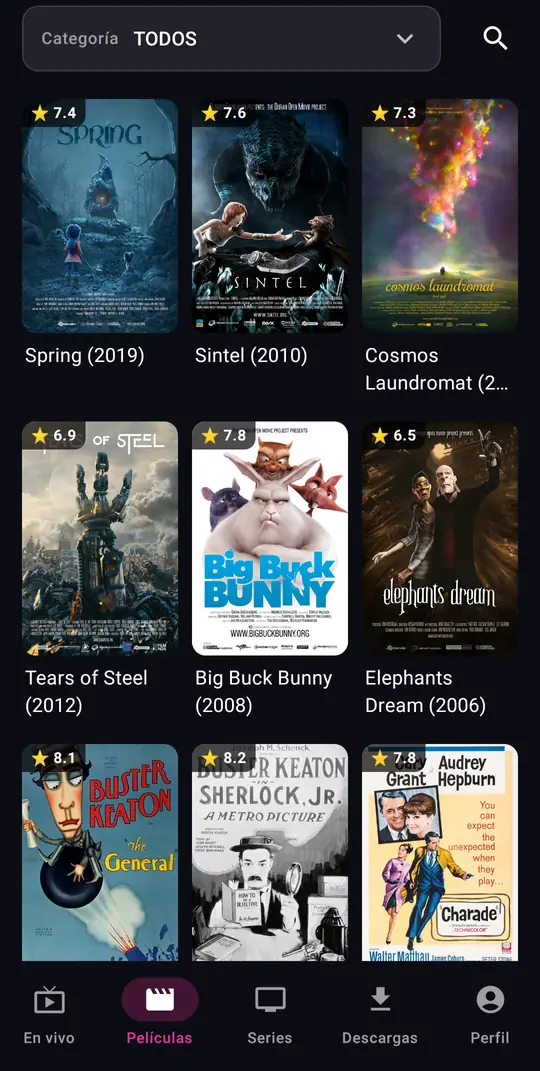
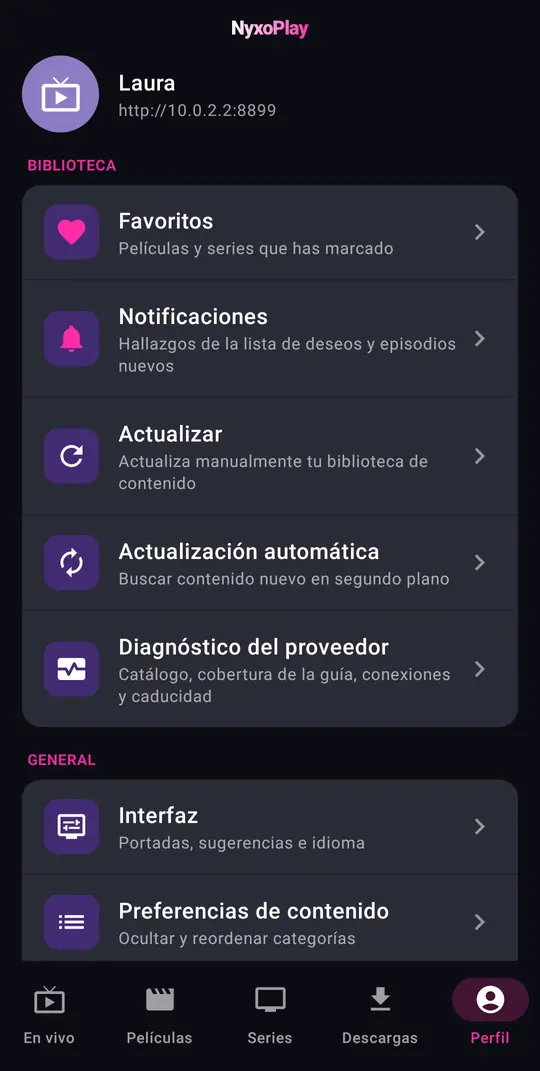
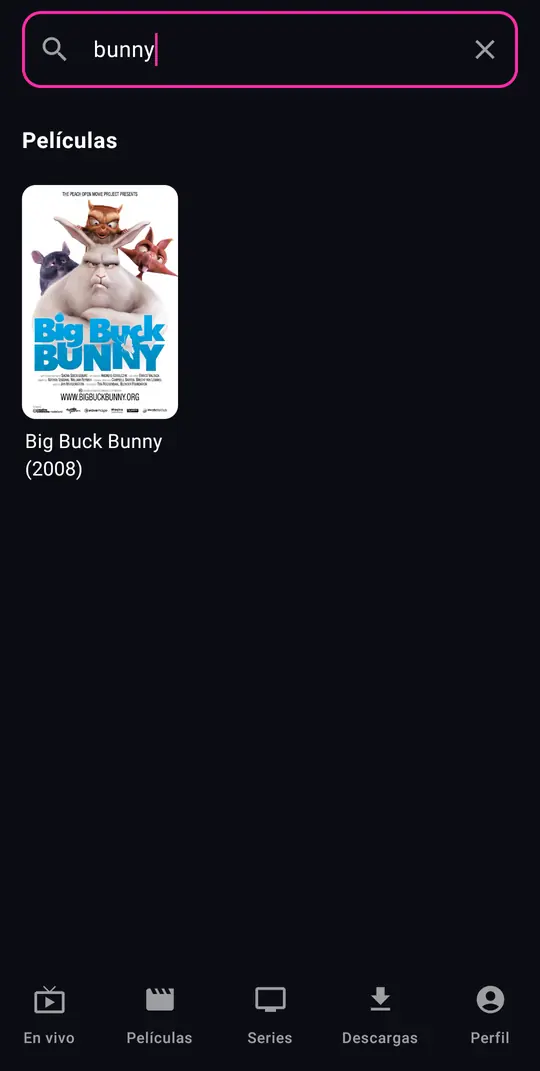
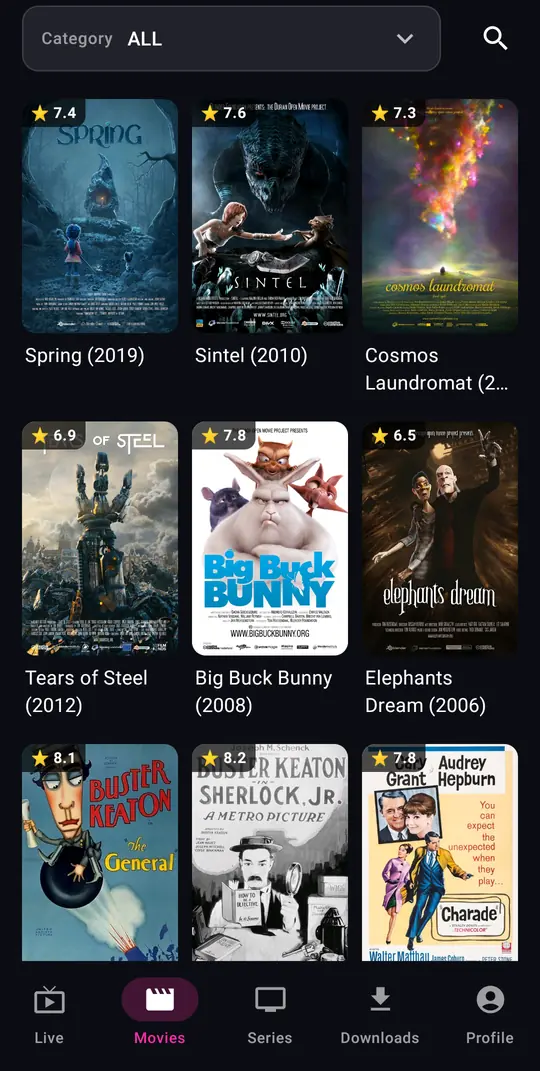
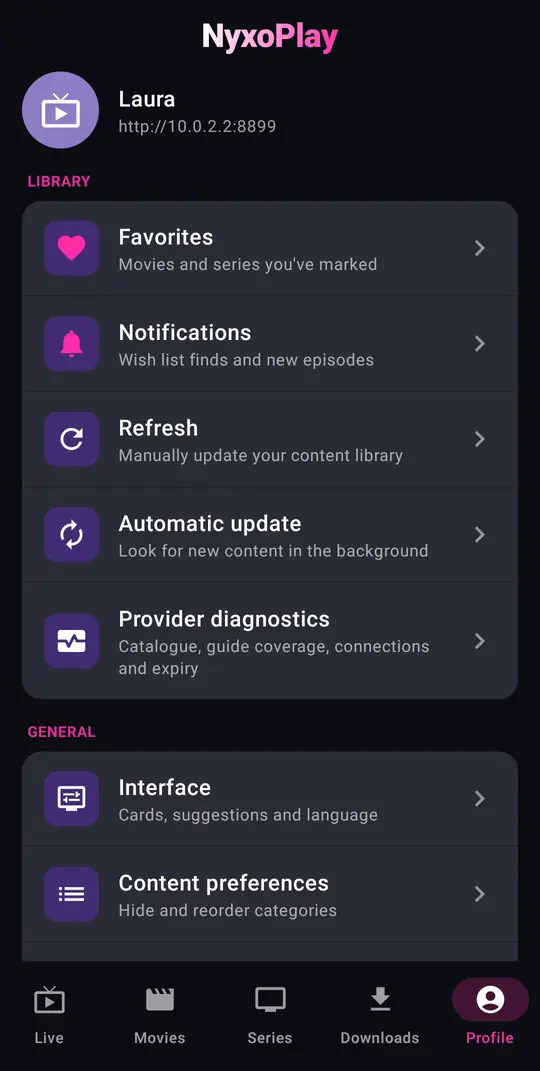
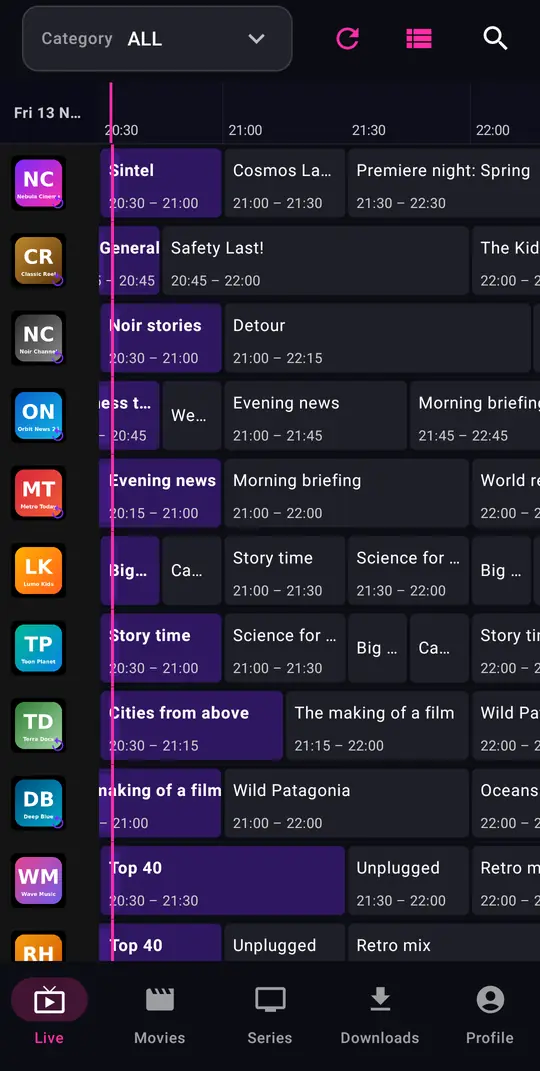
A bar at the bottom switches between the main sections: Live, Movies, Series, Downloads and Profile. Search is the magnifier at the top of each section.
- Category picker: the Category box at the top of Live, Movies and Series lists every category; type in it to filter.
- Long-press a card to add or remove it from your favorites.
- Pull down on a list to refresh your catalogue.
- Profile holds your account header, Favorites, Wish list, Notifications and all the settings.
On a tablet
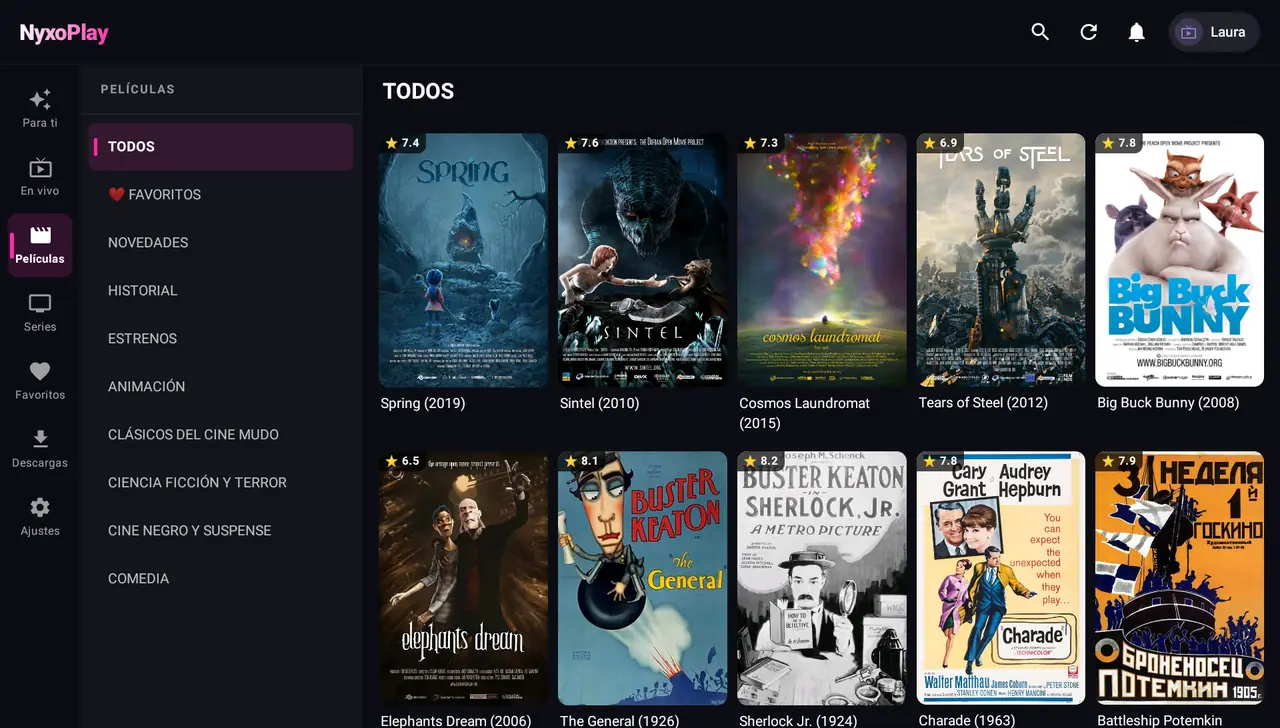
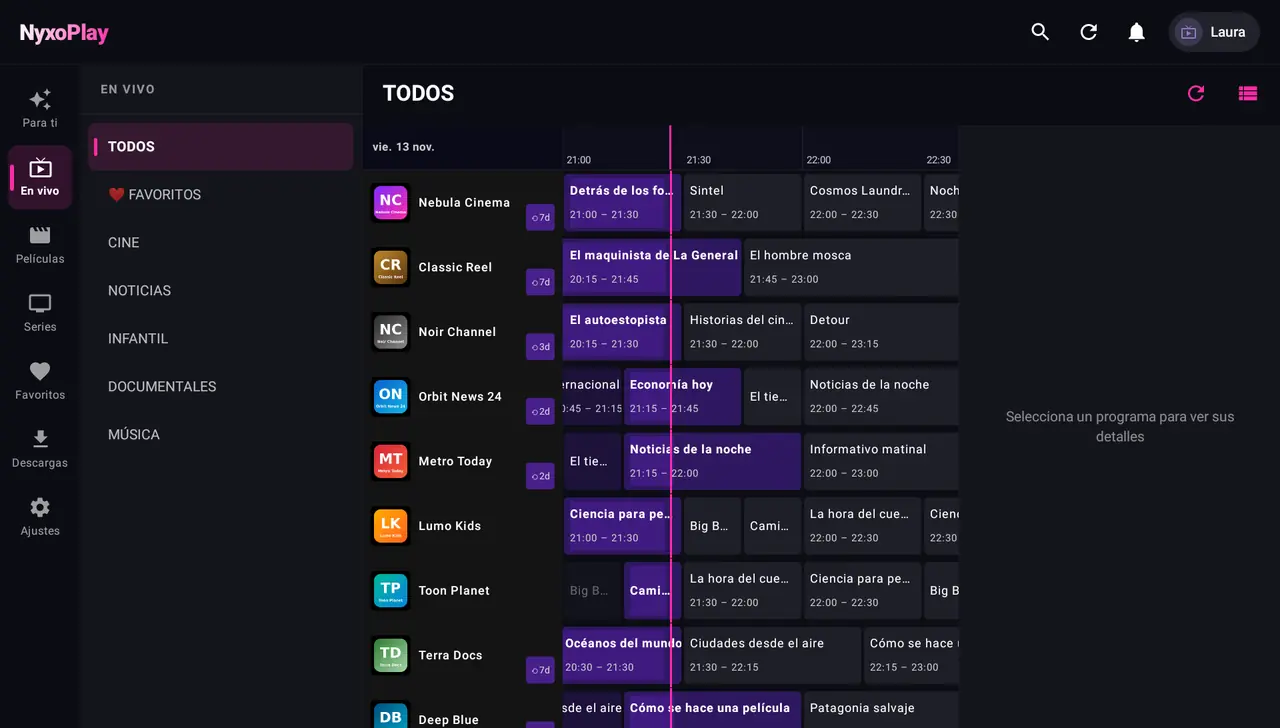
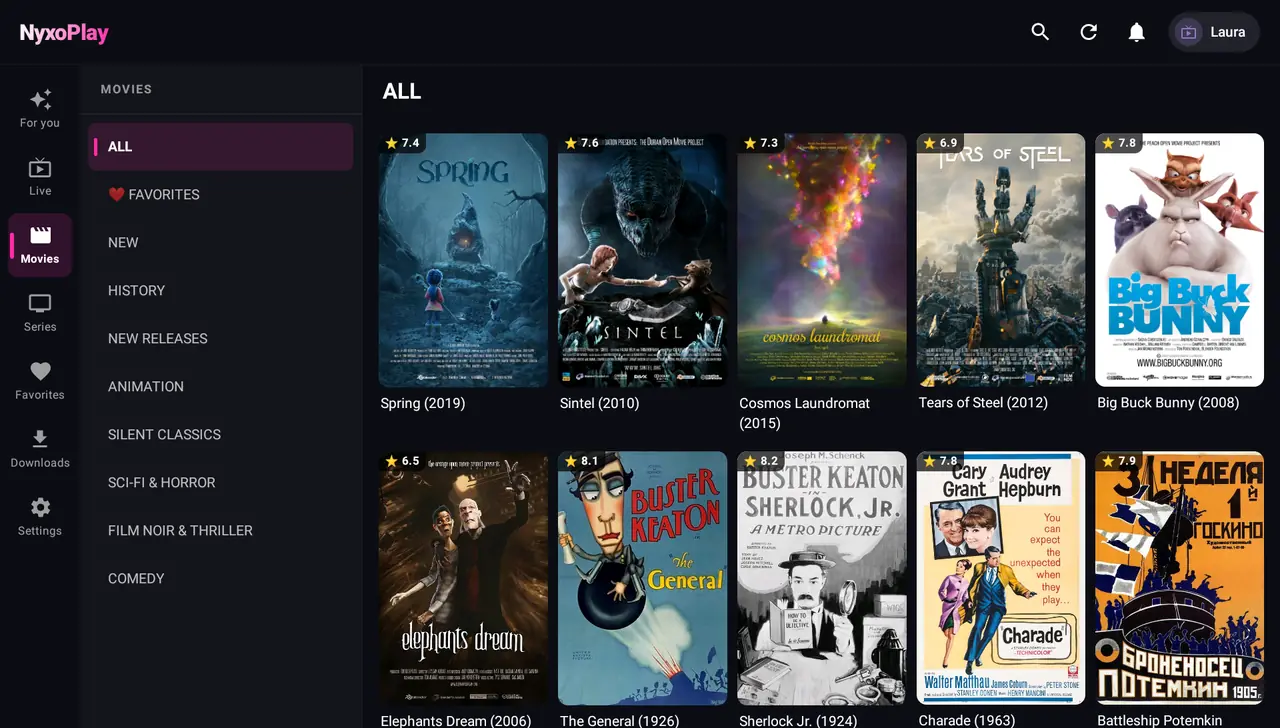
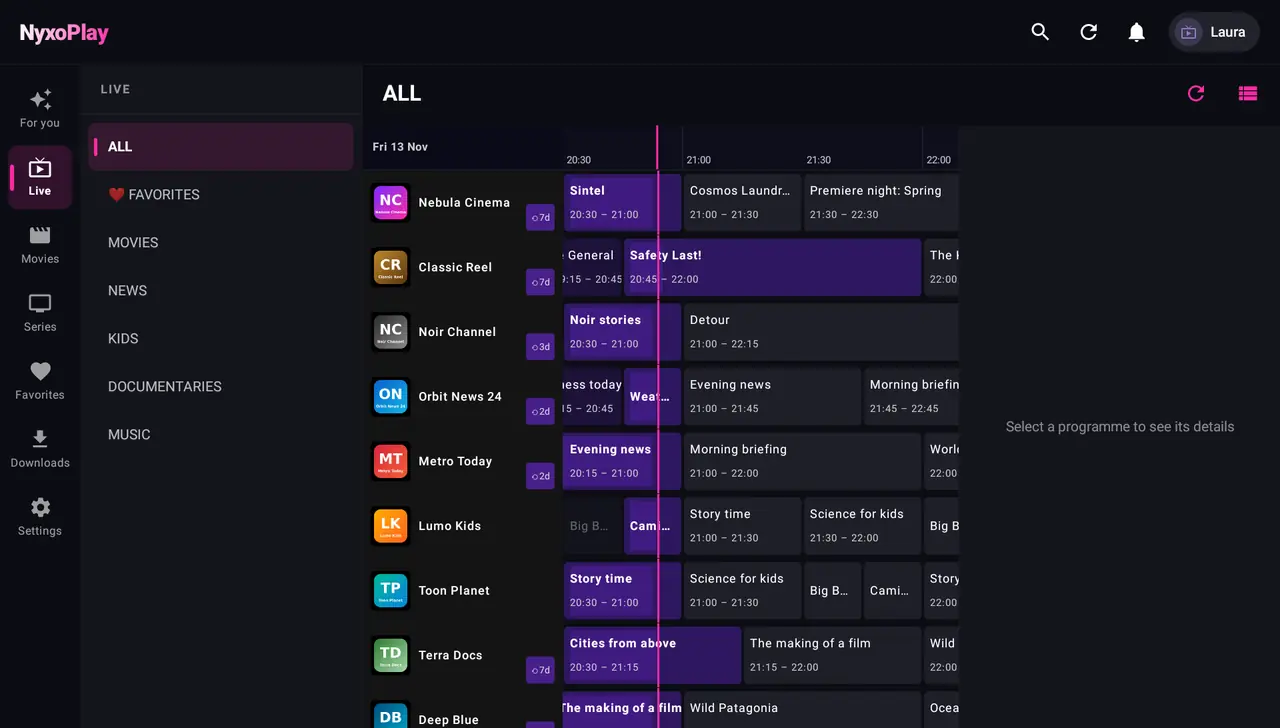
On a tablet you see everything at once: a rail on the left (For you, Live, Movies, Series, Favorites, Downloads, Settings), the categories next to it and the content on the right. It's the TV's three levels, side by side, for touch. In split-screen the tablet falls back to the phone layout automatically.
04Live TV & the guide
Channels, the programme guide (EPG), catch-up, reminders and multiview.
The channel list and the guide
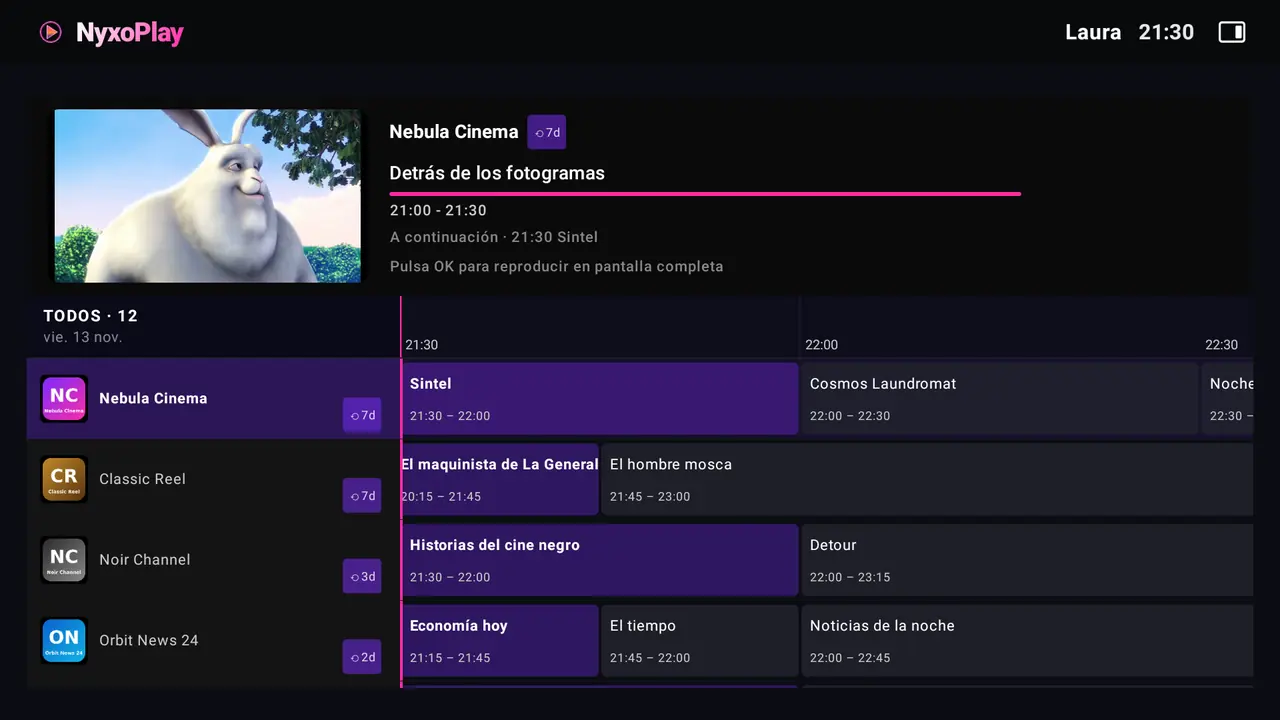
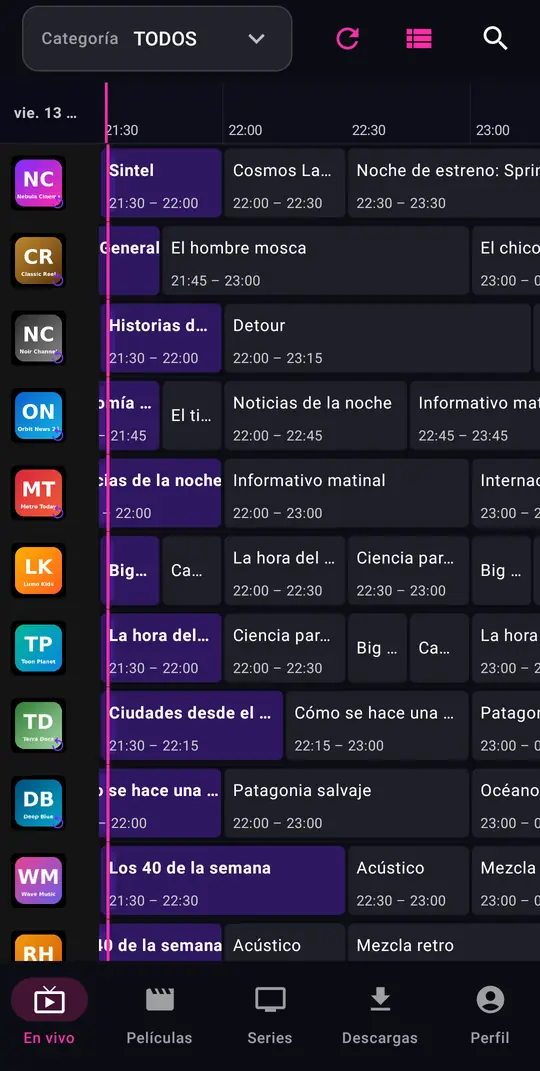
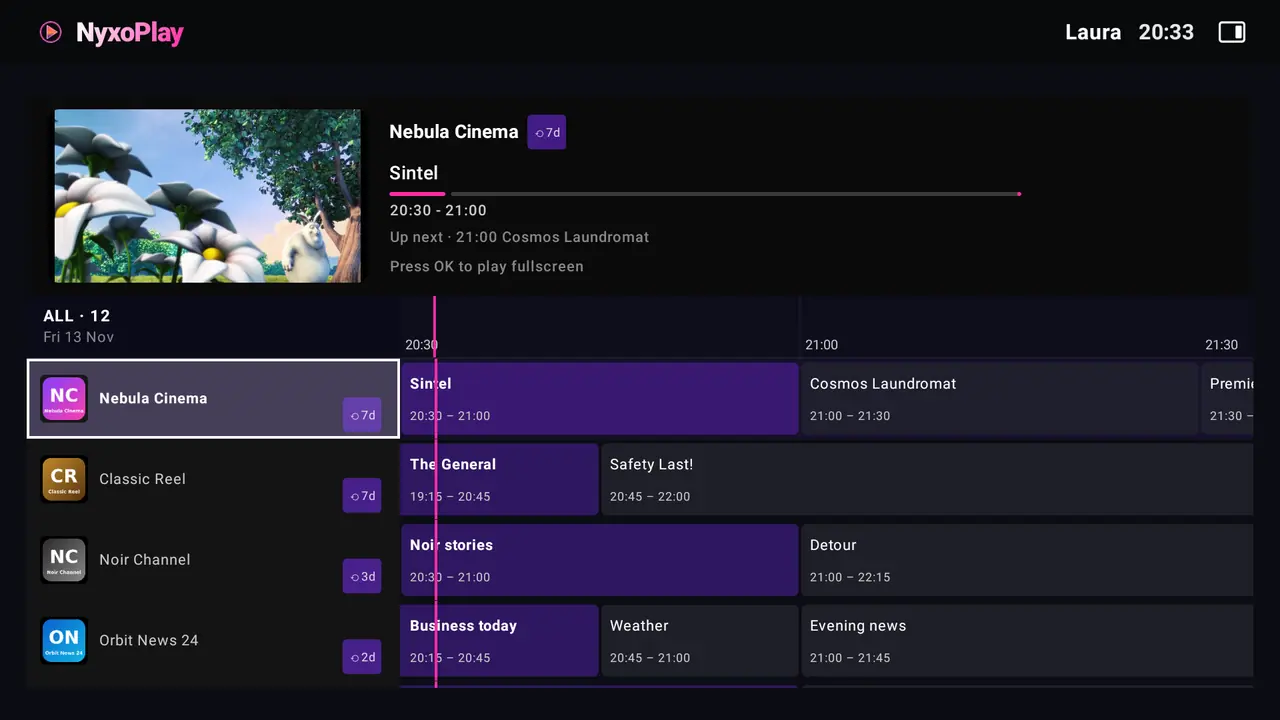
Open Live and pick a category. On TV the channels are shown as a guide grid: channels down the side, programmes across time, a pink line marking NOW. Selecting a channel plays it in a small preview window; press OK on it to go full screen.
- Move in time: on TV, ◀ walks the selection into past programmes and ▶ into future ones.
- Phone and tablet: switch between List view and Guide view with the toggle at the top. Tap a programme to see its details.
- Inside the player on TV, press ▲ or ▼ to open the channel list on the left and change channel without leaving playback.
No programme information? The guide comes from your provider. Go to SettingsElectronic Program Guide (EPG) and choose Update now. Provider diagnostics tells you how many of your channels actually have guide data.
Catch-up: watch what already aired
If your provider keeps an archive, channels show a badge like ⟲7d (days available). Then you can:
- Select a past programme in the guide and play it.
- Use Watch from start on a programme that's on now, or Restart program in the player, to start it from the beginning.
- Use Back to live to return to the live broadcast.
If a programme is too old, you'll see This program is no longer available in the provider's archive.
Reminders: the bell
- Find a future programme in the guide.
On TV, move into the future with ▶; on phone and tablet, tap the programme.
- Set the bell.
On TV press OK on it; on phone and tablet choose Remind me. Do the same again to cancel.
- Get the alert 5 minutes before it starts, with a Watch now button.
On TV the alert even appears over whatever you're watching. On phone and tablet it's a system notification.
Reminders sync between your devices, and each device alerts you on its own. Up to 100 active reminders per profile.
Alerts with the app closed (Android TV). For the TV to bring NyxoPlay forward when a reminder fires, allow “Display over other apps” from SettingsElectronic Program Guide (EPG)Reminders with the app closed. Without it you'll still see a short text message on screen.
Duplicate channels and quality
Many lists repeat each channel in several qualities (4K, FHD, HD, SD, backup). Turn on SettingsContent preferencesGroup duplicate channels to see one entry per channel; the setting tells you how many entries it will merge. Preferred quality chooses which copy opens: Highest, Balanced or Lightest. In the player, Quality switches copy on the fly, and NyxoPlay remembers your choice per channel. If a copy keeps buffering, it steps down to a lighter one automatically.
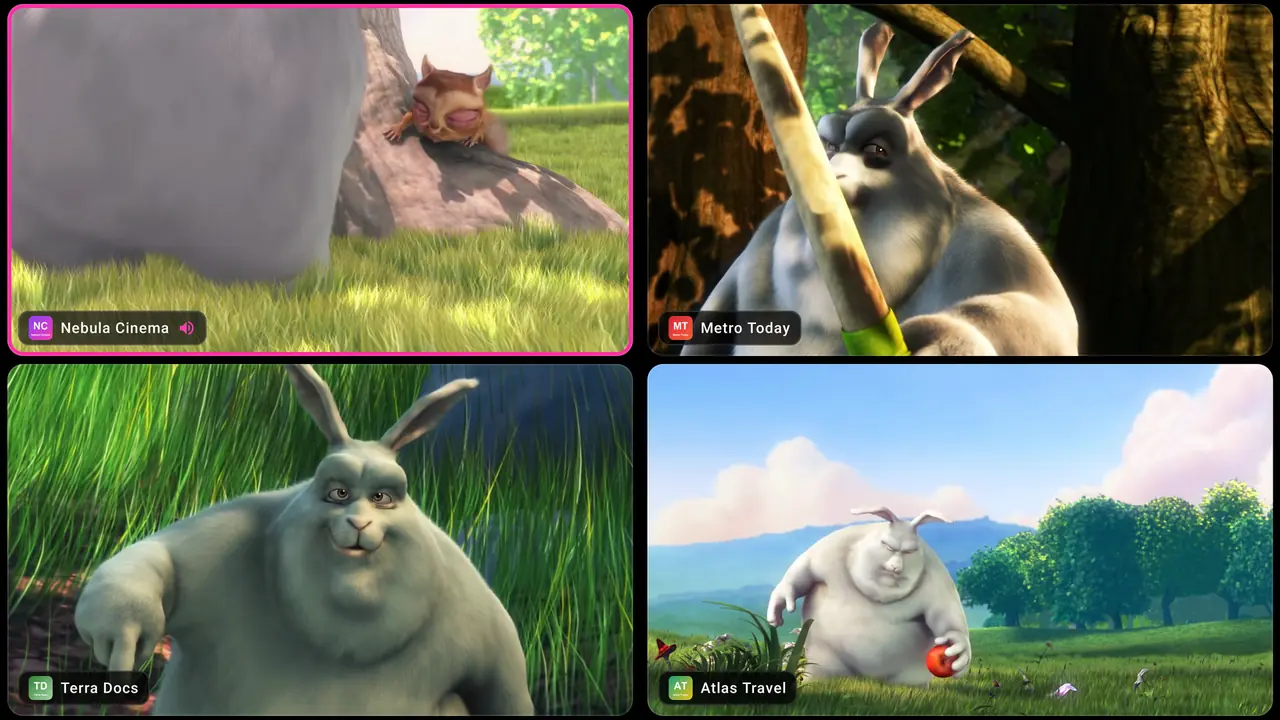
Multiview: several channels at once
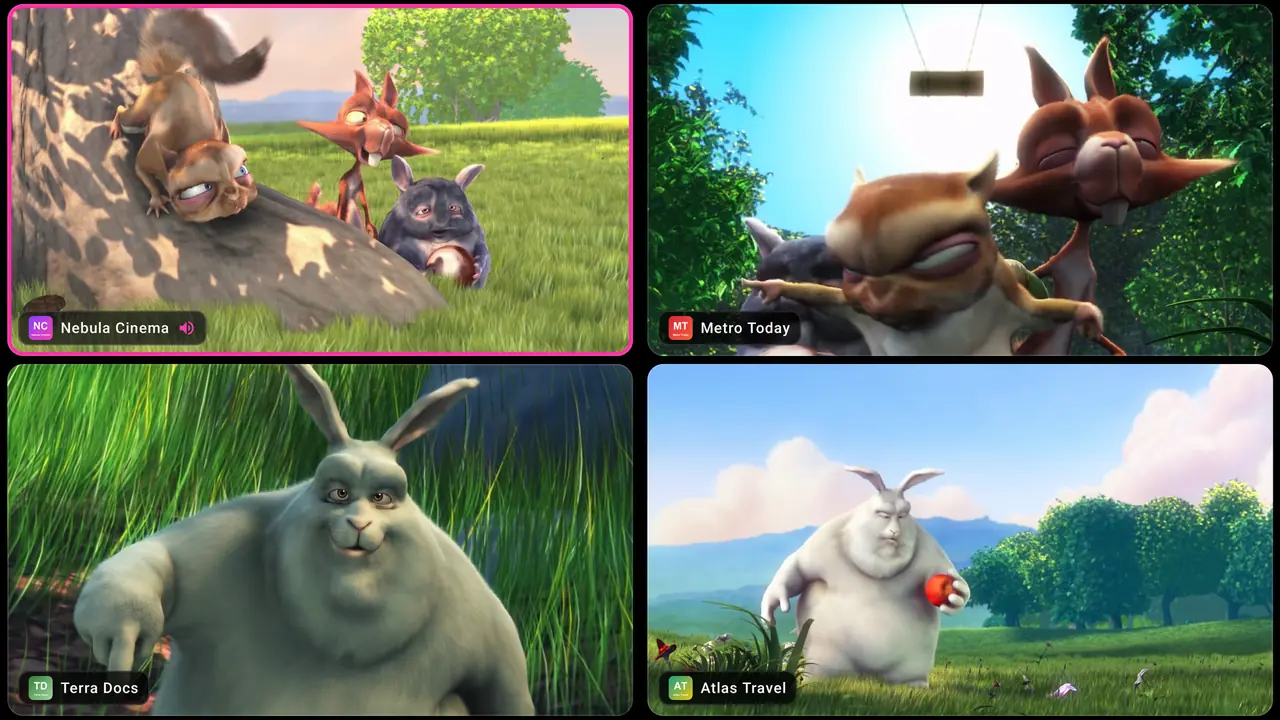
From the full-screen player, choose Multiview. Use Add channel to fill each screen, Change channel to swap one, and Full screen to jump to a single channel. Sound follows the screen you're on (Audio on this screen).
Every screen is a connection to your provider. If your plan allows only one or two at a time, extra screens show The provider doesn't allow more simultaneous connections. Check your limit in Provider diagnostics.
05Movies & series
Browsing, the title page, seasons and keeping track of what you've watched.
Special categories
Alongside your provider's own categories, NyxoPlay adds a few of its own at the top of Movies and Series:
| Category | What's in it |
|---|---|
| SEARCH | Search limited to this section (TV). |
| NEW | What your provider added most recently. |
| ALL | The whole catalogue of this section. |
| ❤️ FAVORITES | What you've marked as favorite. |
| CONTINUE WATCHING | Titles you started and didn't finish. |
| HISTORY / COMPLETED | What you've played, and what you've finished. |
| 🔖 WISH LIST | Titles you're waiting for (needs a TMDB key — see Wish list). |
Hide or reorder any category, and change the sort order (Alphabetical, Original list, Custom), in Content preferences.
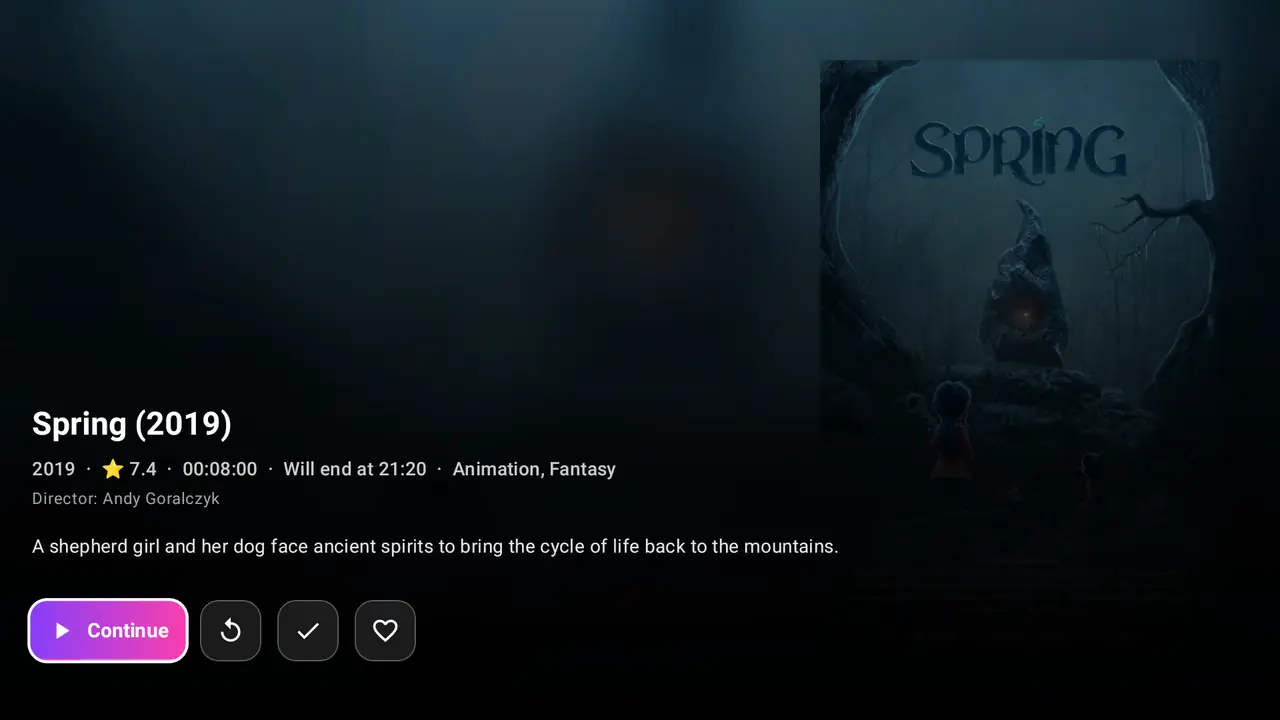
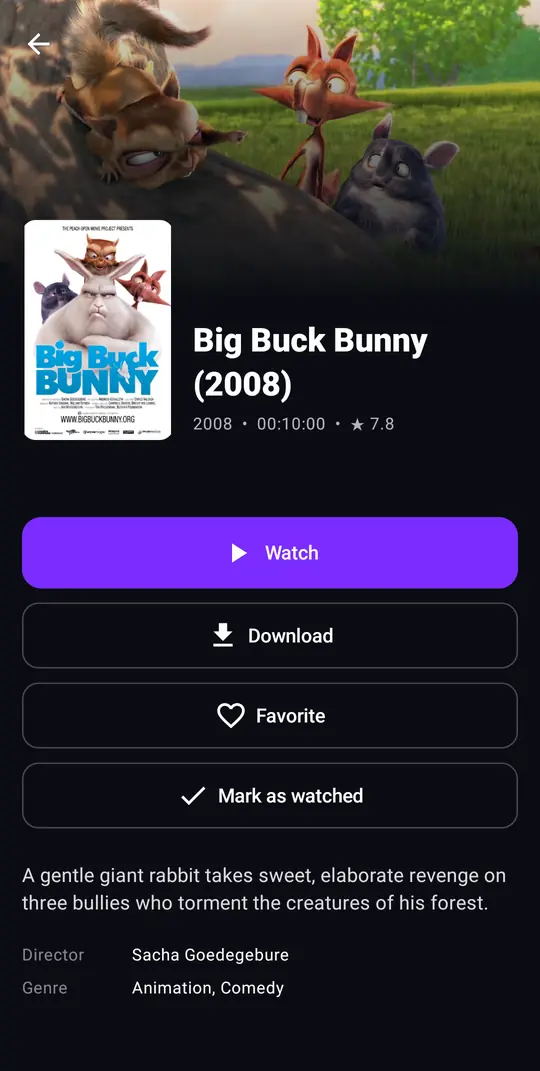
The title page
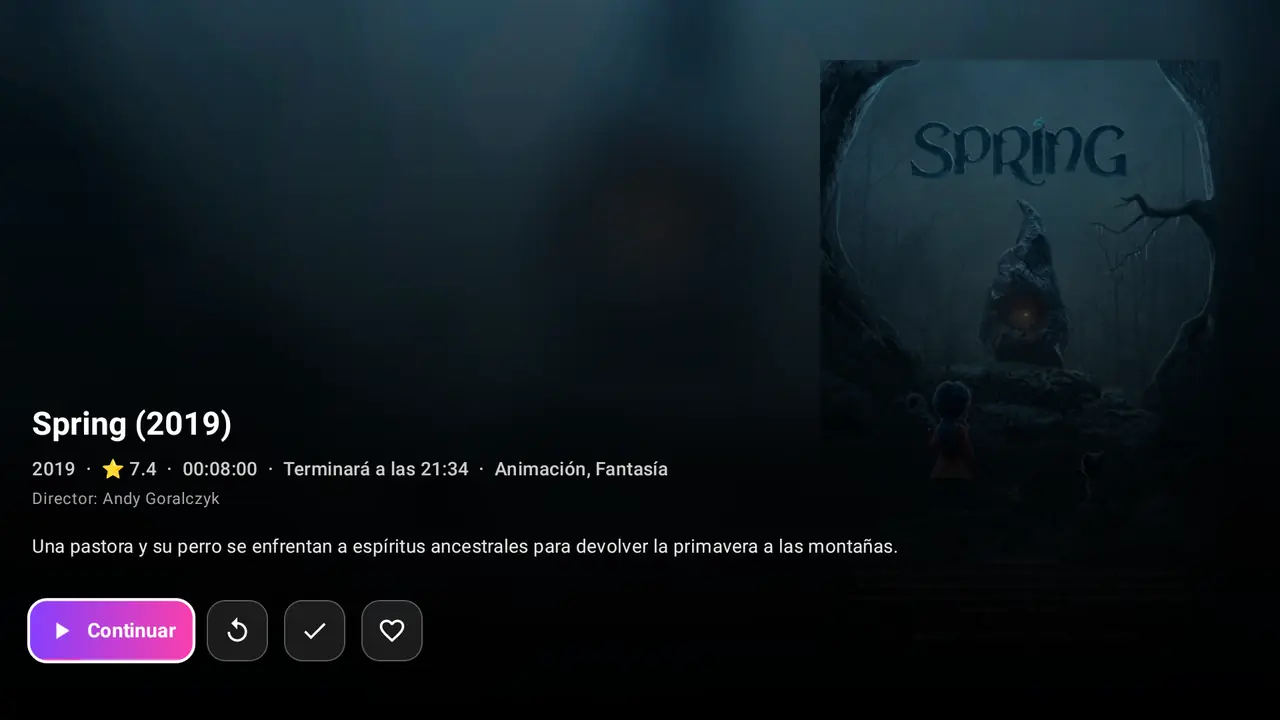
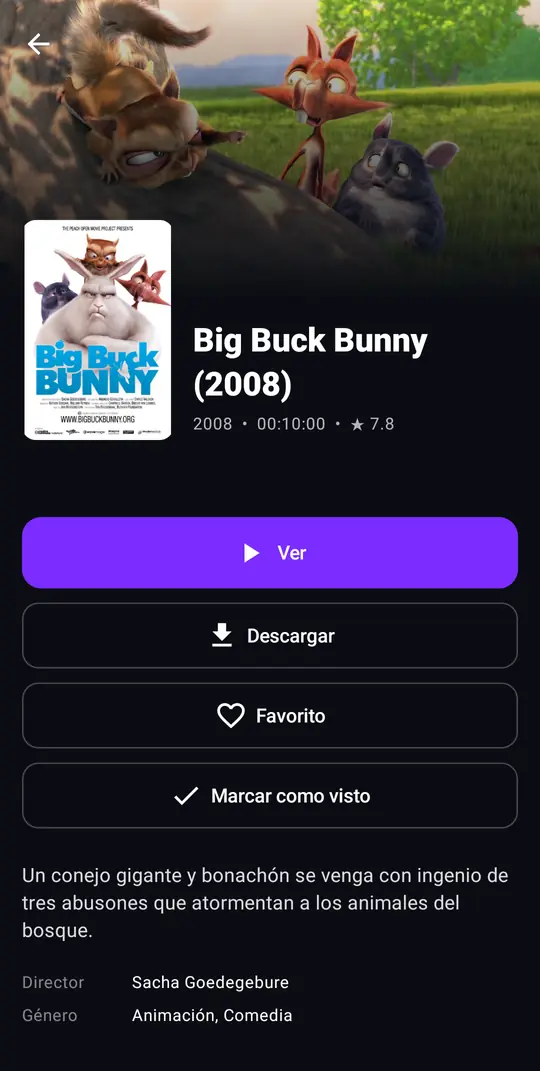
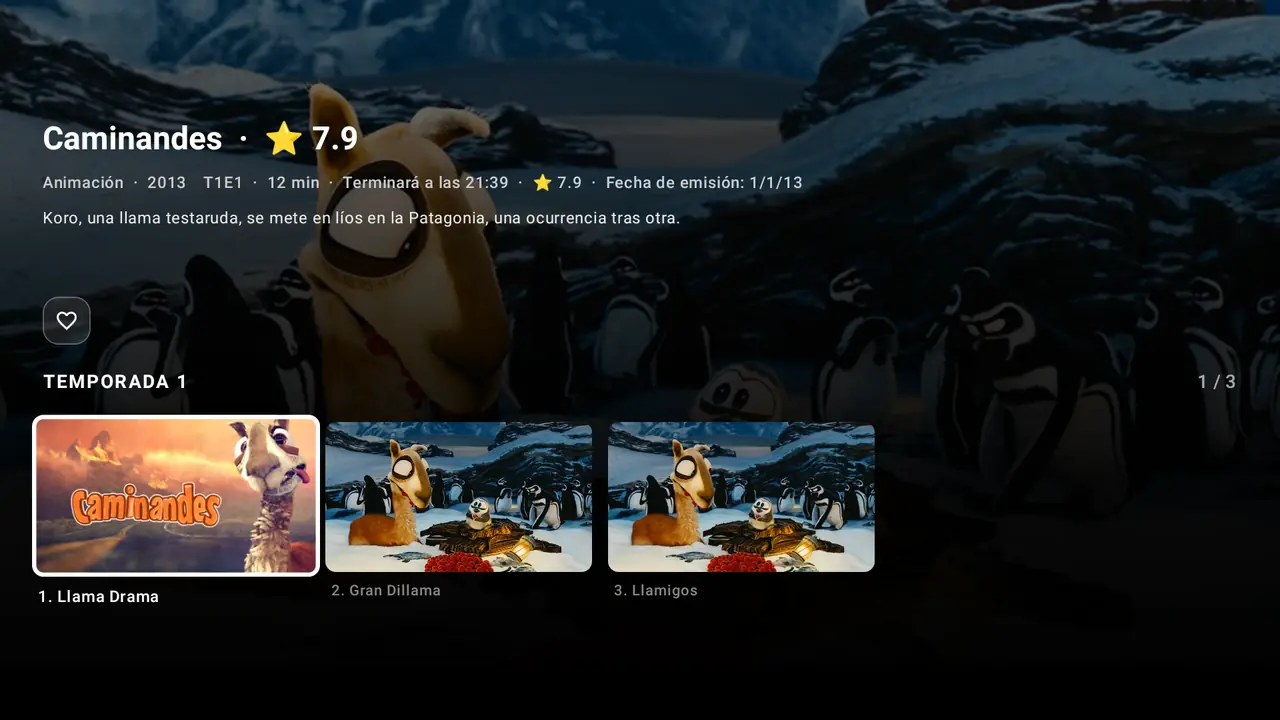
Open a movie or series to see its synopsis, year, rating, duration, genre, cast and director. On TV, the buttons are a row of pills — the main one is written out and the rest are icons that name themselves when you rest on them:
- ▶ Watch / Continue — the bar along its bottom shows how far you got.
- ⟲ From start — ignore saved progress.
- ✓ Watched — mark as seen (filled pink when on).
- ✨ AI — Catch me up / So far (with a Gemini key).
- 🎞 Trailer — plays the official trailer.
- ⧉ Related — the saga and More like this.
- ♥ Favorite — filled pink when it's a favorite.
- ✕ Remove from history — forget this title.
Trailers, the title logo, the saga and More like this come from TMDB and need your own (free) TMDB key — see TMDB & AI extras. More like this only lists titles your provider actually has.
Series, seasons and episodes
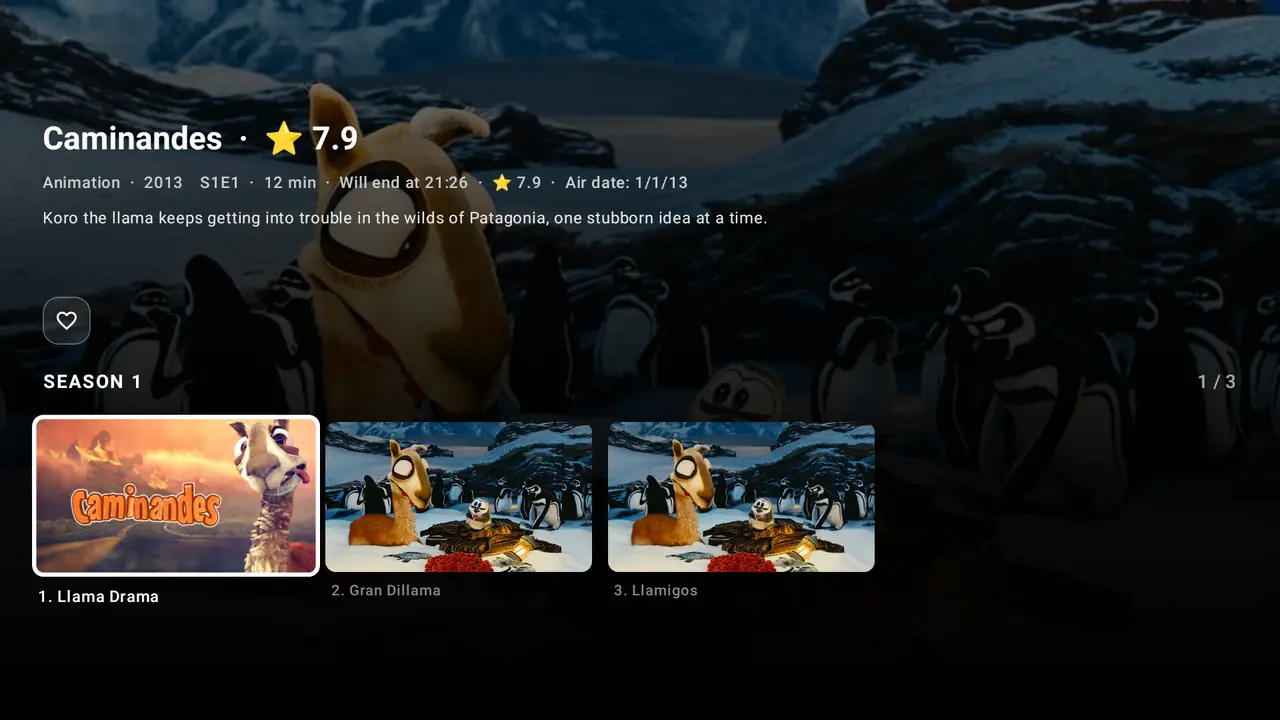
- Pick a season, then an episode. Episodes you've started show a progress bar.
- Hold OK on an episode (TV) or long-press it (phone/tablet) for more options: Mark as watched, Mark previous episodes as watched, Mark season as watched (or unwatched), and download options on phone and tablet.
- Coming from another app with half a series watched? Mark season as watched catches you up in one go.
- When an episode ends — or its credits start — a Next episode button appears with a countdown. Turn Autoplay next episode on or off in Player settings.
Cast and directors
With a TMDB key and Search by cast and director on, a title page shows the faces of its cast. Open one to see that person's filmography, split into what your provider has and what it doesn't.
06The player
Controls, audio and subtitles, sync, sleep timer and the floating window.
Showing the controls
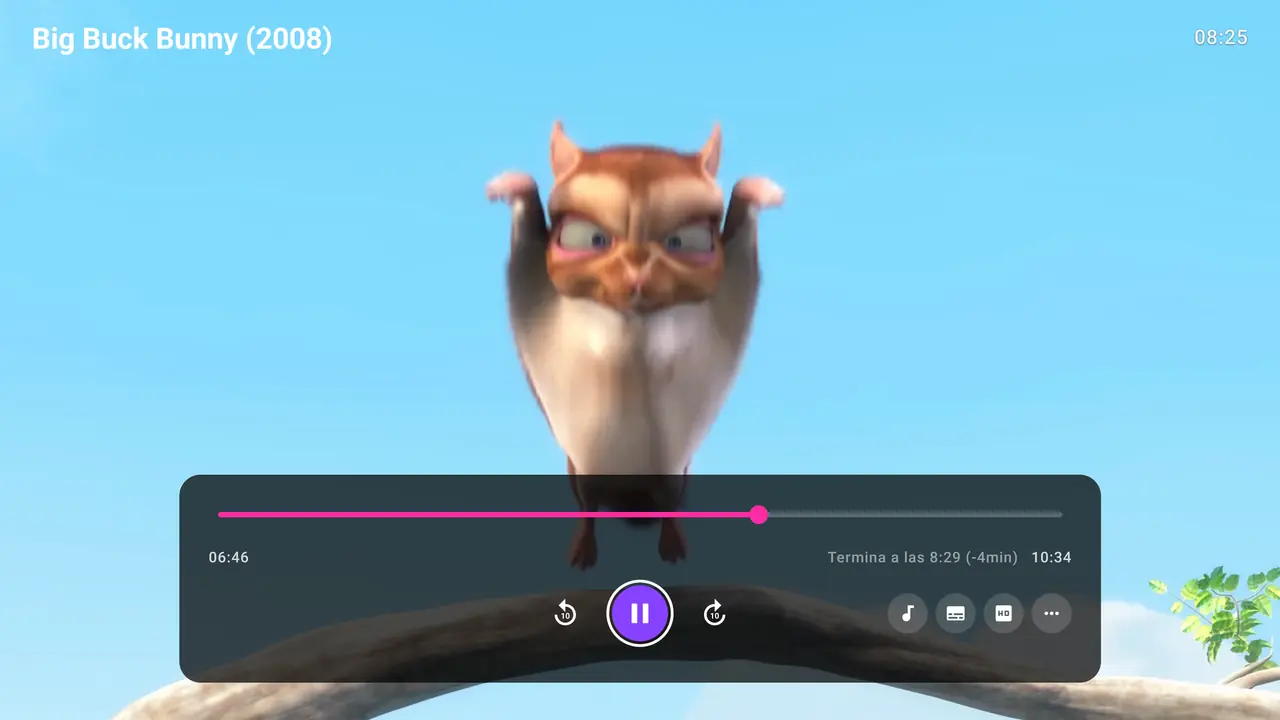
On TV press OK; on phone and tablet tap the screen. The control row offers:
| Control | What it does |
|---|---|
| Restart | Start the programme or video from the beginning (catch-up channels and VOD). |
| Audio | Choose the audio track / language. |
| Subtitles | Choose a subtitle track, or Disable subtitles. Tracks marked forced only translate signs and foreign lines. |
| Video | Choose a video track when the stream has more than one. |
| Sync | Fix audio or subtitles that are early or late, in milliseconds. Save as default keeps the offset. |
| Aspect ratio | Fit, Crop or Stretch. |
| Speed | Playback speed for movies and episodes. |
| Quality | Switch between the copies of a grouped channel. |
| More | Sleep timer, technical info and other options. |
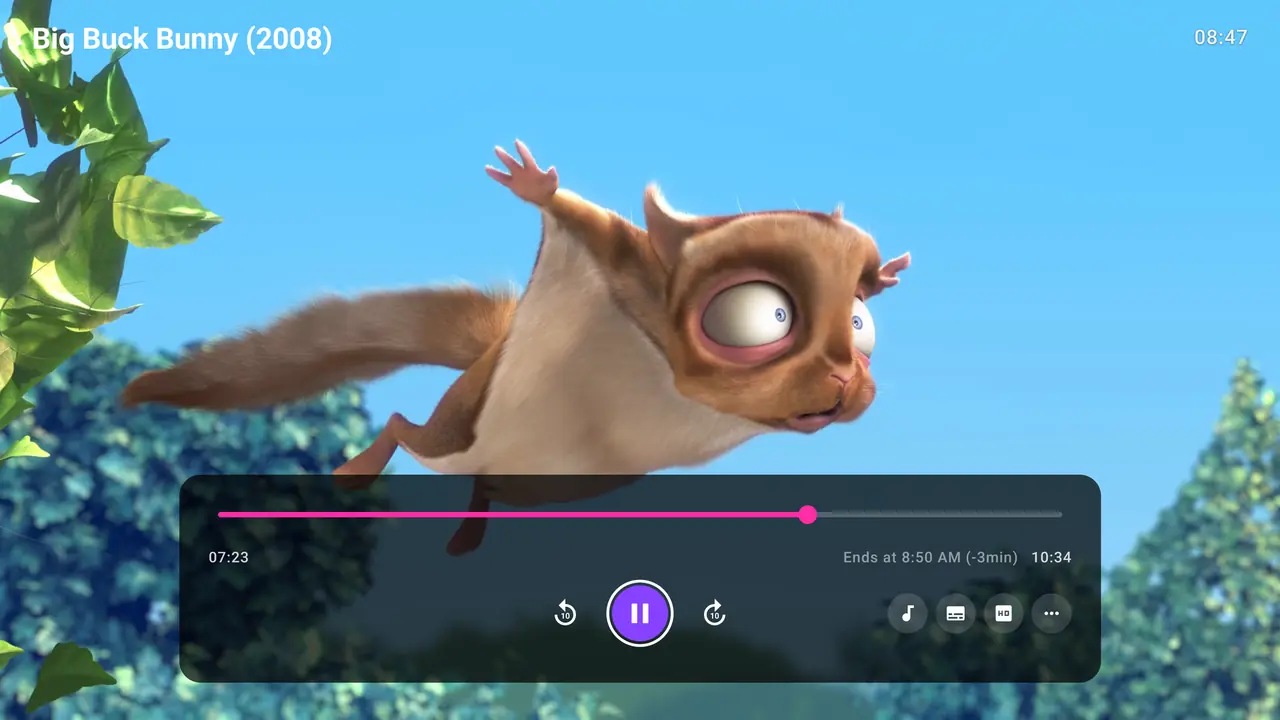
Remote control in the player (TV)
| Button | Action |
|---|---|
| OK | Show the controls. |
| ◀ ▶ | Rewind / fast-forward. Hold to seek faster. With Seek frame preview on (Player settings), a small frame shows where you'll land. |
| ▲ ▼ | Live TV: open the channel list to change channel. |
| ⏯ | Play / pause. |
| Back | Hide the controls, then leave the player. |
Audio and subtitles, automatically
- NyxoPlay remembers your choices. If you pick a language by hand, it's restored next time — for a series, across the whole season.
- Default language: set the preferred audio language in Player settings, and subtitles in SettingsSubtitles & Audio: Off, Forced only (just signs and foreign-language lines) or Always.
- Subtitle appearance: size, colour, edge, background, typeface and position, with a live preview. By default NyxoPlay follows your system's caption settings.
- Translated subtitles: if the stream has no subtitles in your language, turn on Translate subtitles and download your language (~35 MB, once). The subtitle list then offers “✨ Language · translated”, translated on the device, offline.
Sleep timer
From More, open the timer and choose: an alarm when the content ends, suspend when it ends, suspend in 30, 60 or 90 minutes, or suspend when the current programme ends. A countdown appears first — press any key to cancel. The alarm sound is chosen in Player settings.
Floating window (phone & tablet)
With Floating window (PiP) on in Player settings, leaving the app keeps the video playing in a small window. Live channels get play/pause; movies, episodes and catch-up also get ±10 seconds.
Technical info
Turn on Technical info in Player settings to see resolution, frame rate, refresh rate, buffer and — if something goes wrong — how many times the picture stalled and how many times the app had to reconnect. It's the quickest way to tell a slow connection from a provider problem.
Messages you might see
- This content's audio isn't supported on this device — the video plays but the sound format (often Dolby/DTS) has no decoder on your device. See Troubleshooting.
- This content's video can't be shown on this device — the picture format (e.g. some 4K/HEVC or Dolby Vision streams) isn't supported. Sound keeps playing.
- The provider doesn't allow more simultaneous connections — another device is already using your account.
NyxoPlay recovers by itself from short connection drops: it reconnects, restarts the stream and, if your network goes down, resumes when it comes back.
07Search
Find channels, movies, series — and people — across your whole catalogue.
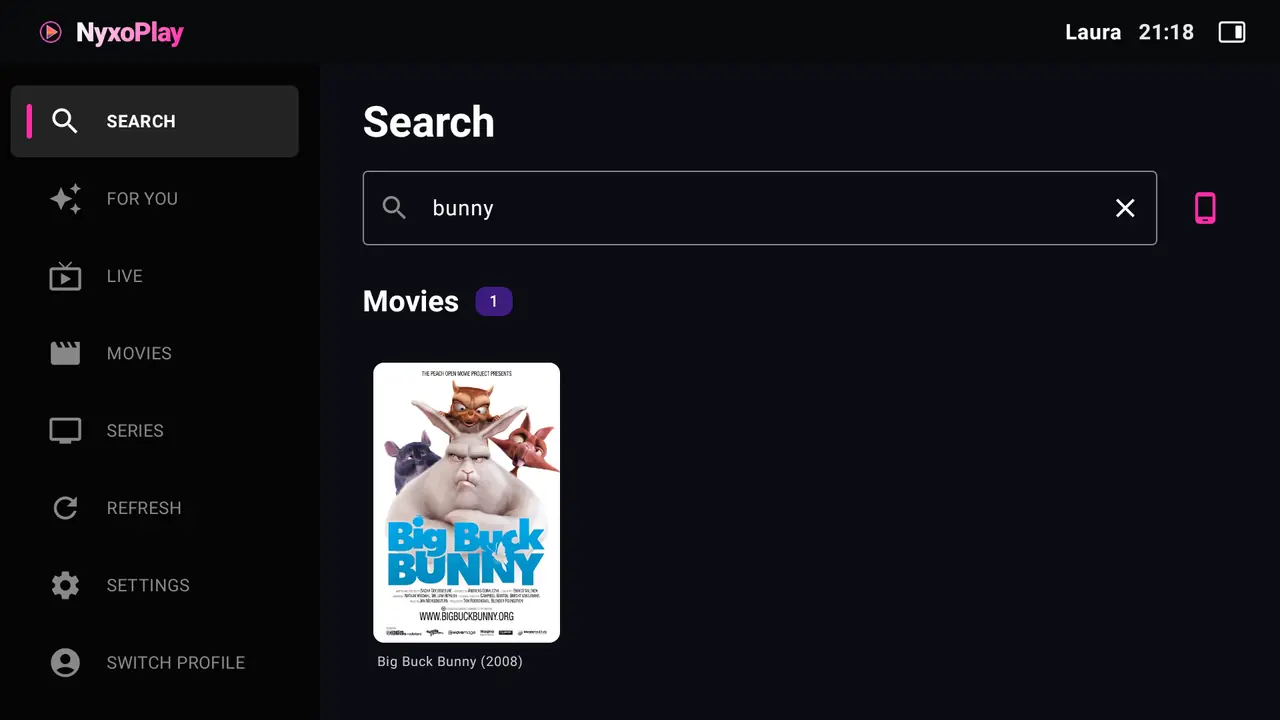
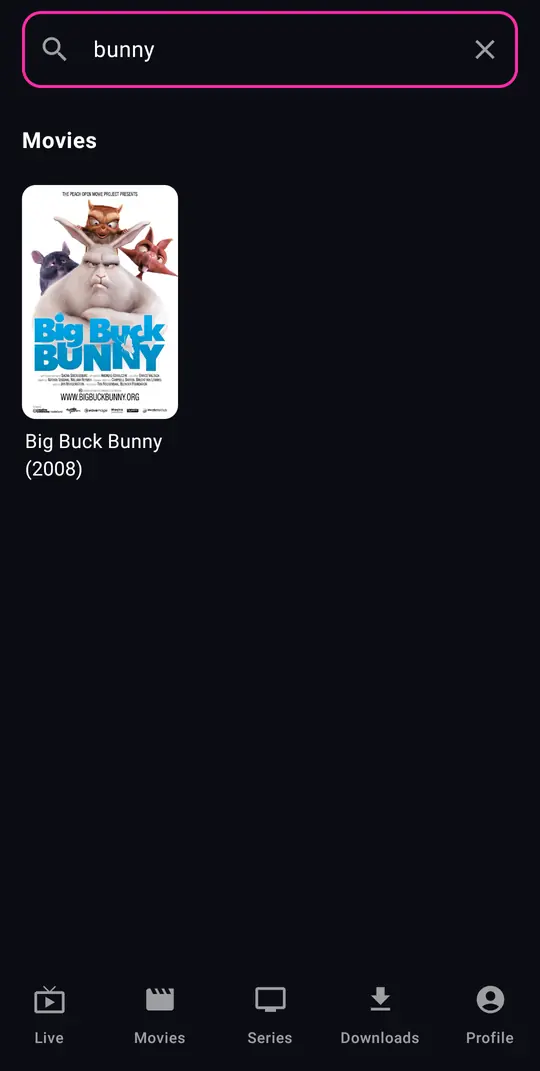
On TV, choose Search in the side menu (or the SEARCH category inside a section to search only there). On phone, tap the magnifier at the top.
- Forgiving: accents, punctuation, word order and Roman numerals don't matter —
godfather 2finds The Godfather Part II, andspidermanfinds Spider-Man. Results are sorted by relevance. - Recent searches: your last ten searches appear as chips under the empty box. Remove one with a long press (TV) or its ✕ (phone).
- People: with a TMDB key, typing an actor's or director's name adds a People row; open it for their filmography in your catalogue.
- Search with AI: with a Gemini key, type a sentence such as “a family comedy from the 90s under 100 minutes” and choose Search with AI. What was understood appears as chips you can remove. See TMDB & AI extras.
Type your search on your phone. In Search on the TV, choose Type on your phone, scan the code, and what you type on the phone appears on the TV as you go.
08For you, favorites & wish list
Your personal corner of the catalogue.
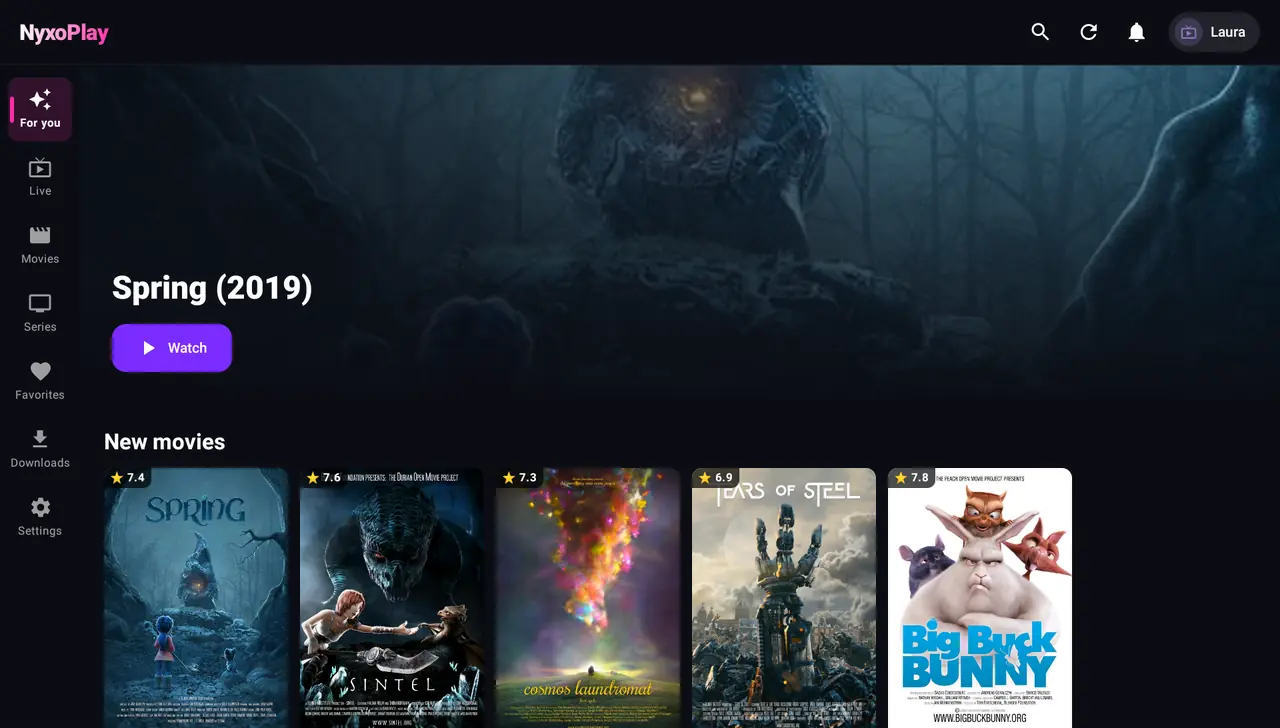
For you
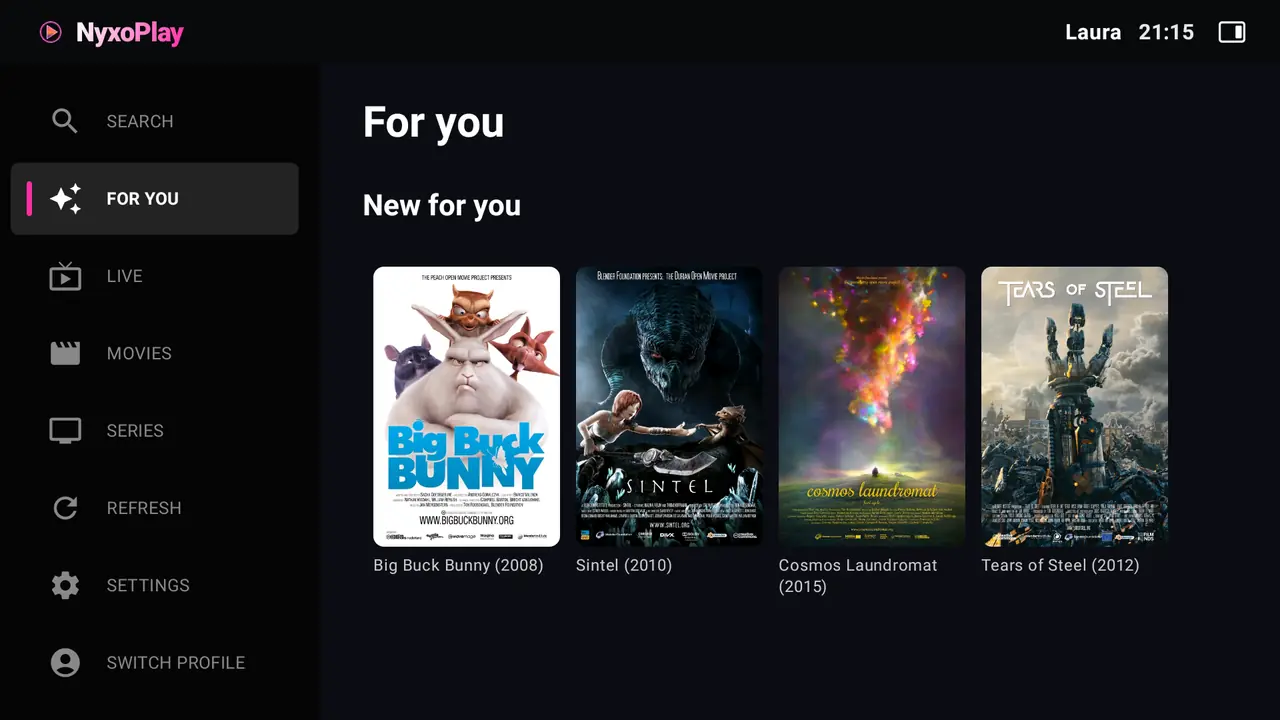
Suggestions built on your device from what this profile watches — nothing is sent anywhere. Each row says why it's there: Because you watched…, Pick up where you left off, New for you, More from…, and, with a TMDB key, Trending this week (only titles your provider has).
- A brand-new profile has no suggestions yet — they appear as you watch.
- Not interested? Press Menu on a card (TV) or long-press it (phone/tablet) and choose Hide. You'll also see fewer titles like it.
- On TV, For you is its own entry in the side menu, and the app can open there (Start on For you). On phone it appears at the top of Movies and Series; on tablet it's the first rail entry. Hide suggestions or SettingsInterfaceShow For you suggestions turns it off.
Favorites, continue watching, history
- Favorite: hold OK (TV) or long-press (phone/tablet) on any channel, movie or series — or use ♥ on a title page.
- Continue watching: movies and episodes you didn't finish, ready to resume. Progress tracking can be switched off per type in Player settings.
- On the TV home screen Android TV: half-watched titles can appear in your TV's own “Continue watching” row, without opening the app. Turn it on with SettingsInterfaceShow on the TV home screen. Profiles locked with a PIN never appear there.
Wish list
Waiting for a film or series your provider doesn't have yet? Add it to your wish list and NyxoPlay will tell you when it arrives.
- Open the wish list.
TV: the 🔖 WISH LIST category in Movies or Series. Phone: ProfileWish list.
- Search TMDB and choose Add on the right title.
- Wait.
After every catalogue refresh NyxoPlay checks your provider. When it finds the title it adds it to your favorites and notifies you. If it isn't sure it's the same title, it asks: Yes, that's it or Not this one. Check now runs the check immediately.
The wish list needs a TMDB key and syncs between your devices.
Notifications
Wish-list finds, new episodes of series you follow, and catalogue or guide updates are collected in Notifications — on TV press ◀ on the side menu; on phone it's in Profile; on tablet, the bell at the top.
09Downloads
Take movies and episodes with you and watch them with no connection at all.
- Download on a movie page, or on an episode; on a series page, Download season gets the whole season. Live channels can't be downloaded.
- The Downloads section shows what's in progress, paused, waiting or downloaded. Pause, resume, retry or remove any of them. Downloads carry on even if you close the app or restart the device.
- Before starting, NyxoPlay checks there's enough free space, so a download never fails half way for lack of storage.
- With no connection, NyxoPlay opens straight on Downloads (No connection · Downloads only) and plays from the file.
In SettingsOffline you'll find space used and available, Download over Wi-Fi only, Automatic expiration (remove downloads not opened in 7, 15, 30 days or a custom period) and Delete all downloaded content.
One file, several profiles. If two profiles download the same title from the same provider, it's stored only once. Removing it from one profile only deletes the file when no profile uses it any more.
10Sync between devices
Start on your phone, finish on the TV — using your own Google Drive, never our servers.
- Open SettingsSynchronisation and choose Connect Google account.
- Sign in.
On a phone, the usual Google sign-in opens. On TV, a QR code and a short code appear: scan it with your phone (or open the address shown) and enter the code.
- Choose what to sync and repeat on your other devices with the same Google account and a profile on the same provider.
| What syncs | Details |
|---|---|
| Favourites | Movies, series and channels you marked. |
| Watch progress | Resume on any device where you left off. |
| Watched | Which episodes and movies you've seen. |
| Statistics | Viewing time across your devices. |
| Wish list & guide reminders | Kept the same everywhere. |
Sync frequency sets how often the app checks Drive in the background (from Manual only to every minute); Sync now does it immediately. Disconnect account stops sync; the files stay in your Drive until you delete them.
11TMDB & AI extras
Optional extras that run on your own free keys. Without them, NyxoPlay uses your provider's information.
TMDB (The Movie Database)
A free TMDB key adds richer information and unlocks several features:
🖼 Better title pages
Backdrops, synopses in your language, ratings, age ratings, the title logo and trailers.
🔗 Saga & similar
Other parts of a collection and More like this, limited to what your provider has.
🎭 Cast & directors
Faces on title pages and person search with filmographies.
🔖 Wish list & trending
The wish list and the Trending this week row in For you.
- Get a key by creating a free account at themoviedb.org and requesting an API key in your account settings.
Use the API Key (v3), not the long “Read Access Token”.
- Paste it in SettingsIntegrationsTMDB. NyxoPlay verifies it on the spot.
- Adjust the Metadata language and, if you prefer TMDB's information to your provider's, turn on Override provider info.
Gemini (AI)
With your own free Google Gemini key you get:
- Search with AI — describe what you feel like watching in your own words (needs the TMDB key too).
- So far — on a series you've started, a spoiler-free recap written only from the synopses of the episodes before the one you're on.
- Catch me up — on a film you left half way, a recap of what happened up to where you stopped, written only from the subtitles you've already heard.
- Recognise hard titles with AI — helps find the right TMDB entry for oddly named titles.
To set it up, open SettingsIntegrationsGemini (AI) and follow the two steps: get a free key in Google AI Studio (on TV, scan the code with your phone), then paste it. The screen shows which features are ready. Only the text needed for each request is sent — your search sentence, or the synopses/subtitle lines for a recap.
12Parental control & statistics
Parental control
- Open SettingsParental control and Set PIN (4 digits).
- Turn parental control on and choose a Limit type: No limit, Per day (the same every day, or a different limit for each day) or Per week.
- Done. When the time is up, playback stops with Viewing time is up until the next day or week.
- Time from every device on that profile counts towards the limit.
- Extend time adds +30 min, +1 h or +2 h to the current period only — with the PIN.
- Once a PIN exists, the whole page is locked: it can be read but not changed without the PIN.
- Separately, a Parental PIN in Content preferences protects hiding and showing categories, and a profile lock protects opening a profile.
Statistics & “Your month”
SettingsStatistics shows viewing time today, this week, this month and in total, compared with the previous period, split into movies, series and live TV, per device or for all of them. Only real playback counts — paused, buffering and skipped time is never included.
Your month is a monthly recap: hours, titles, days you watched, longest streak, busiest day, favourite weekday, the series you followed most and the films you watched. Share turns it into an image.
13Settings reference
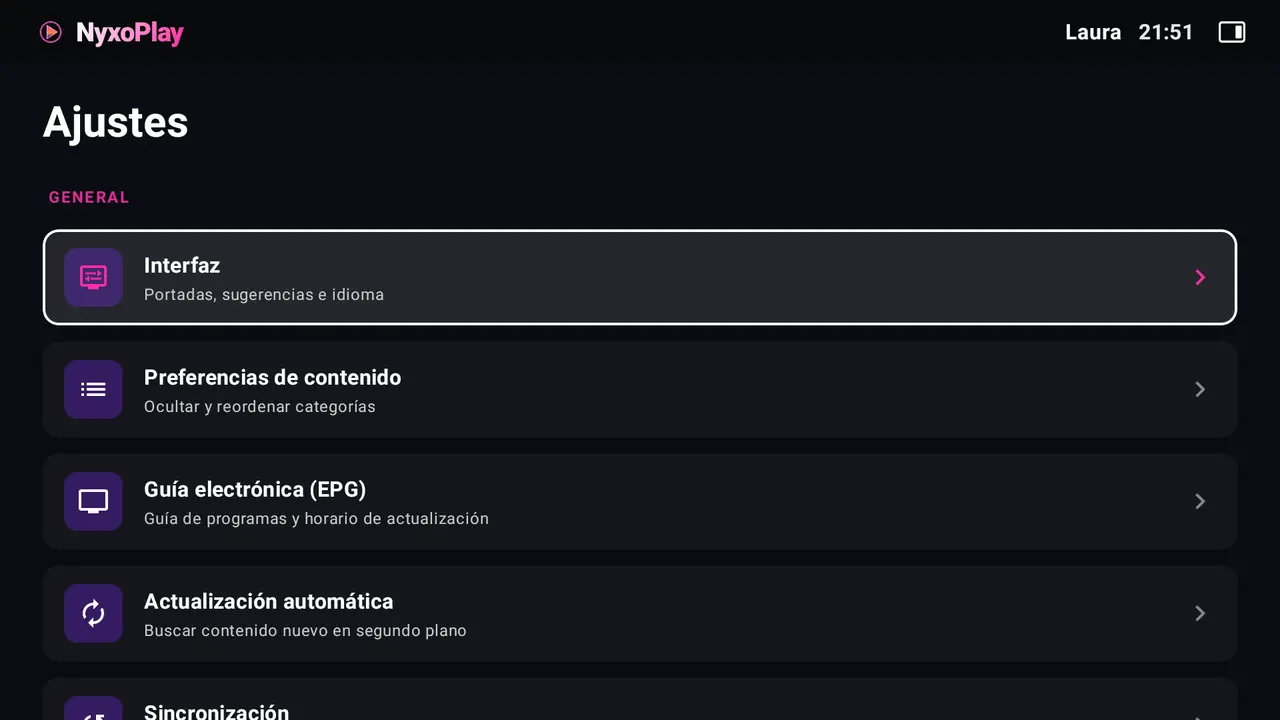
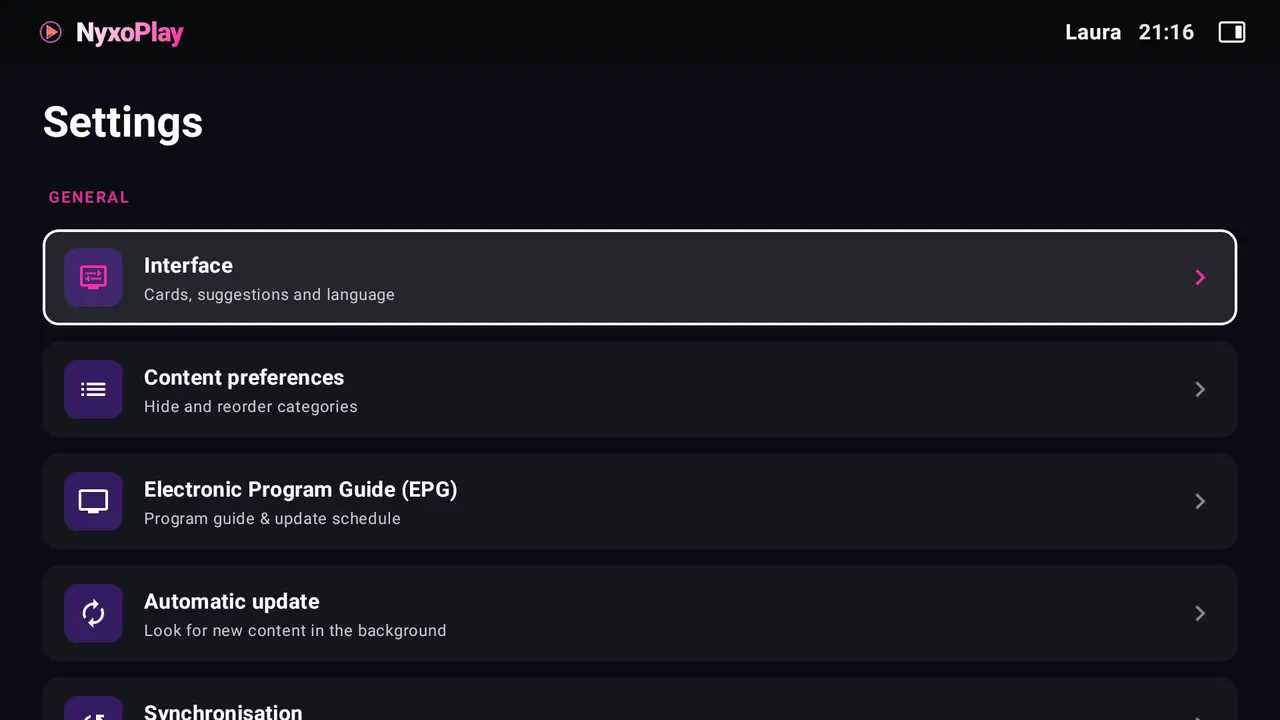
Every settings page and what it's for. On TV, Settings is in the side menu; on phone, in Profile.
Library
| Entry | What it's for |
|---|---|
| Favorites · Wish list · Notifications | Shortcuts to your lists (phone & tablet). |
| Refresh | Download your provider's catalogue again now. |
| Automatic update | Look for new content in the background: How often (every few hours or off), Update on entering a profile, Wi-Fi only, Include live channels. |
| Provider diagnostics | What your list really offers: catalogue size, guide coverage, catch-up, simultaneous connections, subscription expiry — and Measure speed. |
General
| Page | Main options |
|---|---|
| Interface | Language · Show card titles · Show For you suggestions · Start on For you (TV) · Show on the TV home screen (TV) · Performance mode (fewer animations on modest devices) · where Trailers play. |
| Content preferences | Show, hide and reorder side-menu entries and every Live, Movie and Series category · sort order · Group duplicate channels and Preferred quality · Parental PIN to protect these changes. |
| Electronic Program Guide (EPG) | Guide source · Update interval · Update on open · Update on content changes · Update now / Clear EPG · reminders with the app closed (TV). |
| Synchronisation | Google account, what to sync, frequency. See Sync. |
| Type on your TV (phone) | Search or add a provider on the TV from the phone. On TV, Paired phones lists and forgets phones. |
| Offline (phone & tablet) | Space, Wi-Fi only, automatic expiration. See Downloads. |
| Statistics · Parental control | See Parental control & statistics. |
Playback
| Page | Main options |
|---|---|
| Player | Playback start: Prioritise stability (recommended) or Prioritise speed (very stable connections only) · audio and video decoders · audio output (Auto, Passthrough to send Dolby/DTS to your amplifier, PCM) · audio language · Autoplay next episode · progress tracking for movies and series · Technical info · Floating window (PiP) · alarm sound. |
| Player — TV only | Match the refresh rate on films and series and …on live TV: switch the TV to 50/24 Hz to match the content, for smooth motion (off by default; the screen goes black for a second when it switches) · video tunneling (VOD). |
| Subtitles & Audio | Subtitle mode (Off / Forced only / Always) · preferred language · appearance · AI translation · default audio and subtitle offsets. |
Integrations & about
| Page | Main options |
|---|---|
| TMDB | API key · metadata language · Override provider info · Search by cast and director · cache cleanup. |
| Gemini (AI) | Your key, which AI features are ready, Recognise hard titles with AI. |
| NyxoPlay Premium | Subscribe, start the free trial, Restore purchase, Manage subscription. |
| About · What's new · View tutorial · Rate the app | Version, support contact, community links, privacy policy, open-source licences, release notes. |
15Troubleshooting
The most common questions, and how to solve them.
“We couldn't connect” when adding my provider
Copy the link again from your provider's message — a missing character is the usual cause. Make sure it includes http:// or https:// and the port if there is one (e.g. :8080). If your provider gave you a username and password, tick I have a username and password or use Advanced mode. Check also that your subscription hasn't expired.
Picture but no sound
If you see This content's audio isn't supported on this device, the channel only has Dolby (AC-3/E-AC-3) or DTS sound, and your device has no decoder for it. Try another audio track in Audio, or change the audio decoder in Player settings.
On a TV connected to a soundbar or amplifier, try the audio output options in Player settings (Auto, Passthrough, PCM), and PCM audio for live TV.
“The provider doesn't allow more simultaneous connections”
Your provider limits how many streams can play at once on your account. Stop playback on another device (or close extra multiview screens). Provider diagnostics shows your limit under Simultaneous connections.
Channels keep buffering or cutting out
Open SettingsProvider diagnostics and choose Measure speed. It measures the speed to your provider and tells you whether it's enough for SD, HD, Full HD or 4K.
- Use Ethernet or 5 GHz Wi-Fi on TV boxes if you can.
- Keep Playback start on Prioritise stability.
- For grouped channels, set Preferred quality to Balanced or Lightest.
- Turn on Technical info: many stalls without reconnections point to your line; regular reconnections point to the provider.
The guide is empty or wrong for some channels
Run SettingsElectronic Program Guide (EPG)Update now. A channel only gets listings if your provider's guide includes it — Provider diagnostics shows the coverage (e.g. 180 of 240 channels). Missing channels have to be fixed by the provider.
New movies or channels aren't showing up
Use Refresh (TV side menu, or pull down on a list on phone). To keep it up to date by itself, turn on SettingsAutomatic update.
Movies judder on camera pans (TV)
Your TV is probably running at 60 Hz while the film is 24 or 25 frames per second. Turn on Match the refresh rate on films and series in Player settings. The screen goes black for a second when it switches — that's normal. If your TV only offers one mode, the setting says so.
Favorites or progress don't appear on my other device
Both devices need the same Google account in Synchronisation, and a profile on the same provider. Press Sync now on both. If it says another device is syncing, it retries by itself in a few seconds.
A 4K or Dolby Vision film shows a black screen
NyxoPlay tries to recover automatically. If the message This content's video can't be shown on this device appears, your device can't decode that format. If the refresh-rate setting is on and it happens right as a film starts, try with it off.
I forgot the parental or profile PIN
For your protection the PIN can't be recovered from inside the app. Contact us at support@nyxoplay.com.
16Privacy & support
- No accounts, no servers. Your provider details stay on your device, and the app talks straight to your provider.
- Sync is optional and lives in your own Google Drive, limited to the files the app creates.
- No ads, no tracking. Recommendations are calculated on your device.
Read the full Privacy Policy. Questions or suggestions? Write to support@nyxoplay.com, or find us on X (@nyxoplayapp) and Discord.
Screenshots show demo content: Big Buck Bunny, Sintel, Tears of Steel, Elephants Dream, Cosmos Laundromat, Spring and Caminandes © Blender Foundation | blender.org (CC BY), and public-domain classics. Channel names and logos are invented.
↑ Back to top